Editing gets frustrating fast when useful commands are buried in menus or scattered across a long list of shortcuts. For creators, freelancers, and small production teams, a good shortcut-focused keyboard can make everyday editing feel much more direct and manageable.
The tricky part is that these products do very different jobs. Some give us programmable controls, some are dedicated editing surfaces, and others simply put color-coded shortcut guides right on the keys. That can make choosing the right one surprisingly confusing.
We looked across the category, checked the current products and their documented features, and compared what each option is actually designed to do. Our goal is to make the decision easier, whether you are building a small editing setup, learning a new workflow, or trying to speed up one you already know.
How We Selected the Best Video Editing Keyboards
We narrowed the options by looking beyond how impressive a product sounds on paper. We focused on what each one can realistically add to an editing workflow and whether those benefits make sense for the people most likely to use it.
We also kept compatibility and everyday practicality in view. A shortcut system is only helpful when it works with your editing software, fits your setup, and gives you controls you will actually use regularly.
- Shortcut access: We looked for ways to make common editing commands easier to recognize, remember, or trigger.
- Software fit: We considered whether the product is genuinely suited to Premiere Pro, DaVinci Resolve, or broader creative work.
- Control flexibility: We compared programmable keys, physical dials, dedicated buttons, and fixed shortcut references.
- Compatibility: We checked supported systems, keyboard layouts, device generations, and connection options.
- Workspace impact: We considered whether the design makes sense for a laptop, compact desk, or dedicated workstation.
- Build and protection: We looked at construction, materials, cleaning features, and available manufacturer support.
- Ease of use: We favored options with clear setup information and controls that should be straightforward to adopt.
Together, these factors give us five options with noticeably different strengths. That makes it easier to choose based on how you actually edit.
Best Video Editing Keyboards with Color Shortcuts for 2026
Now that we have separated the major approaches, let’s get into the five options and what each one does best.
1. HUION Keydial Mini Bluetooth Programmable
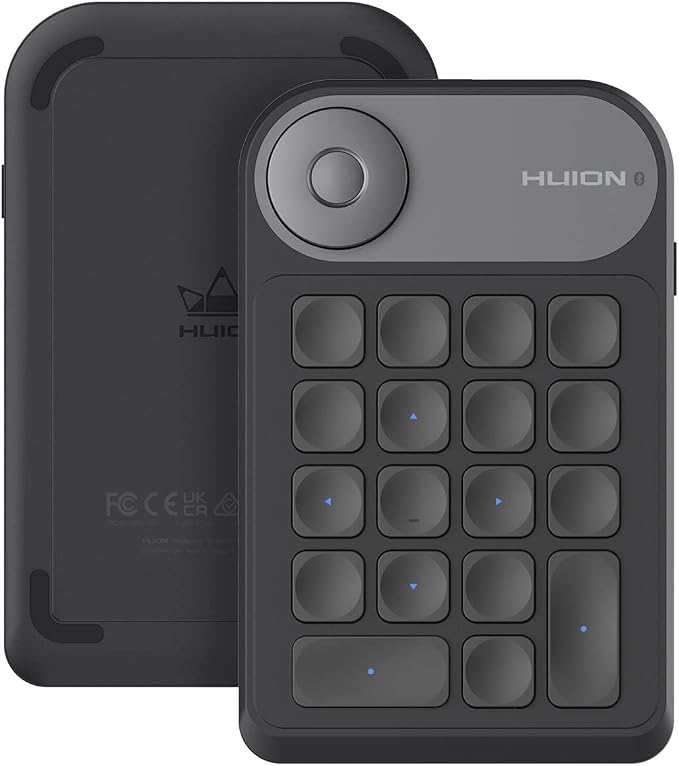
For creators who already have a laptop or desktop keyboard and want extra editing controls, the Huion Keydial Mini is a particularly flexible option. Instead of replacing your keyboard, it adds a compact control surface for commands you use repeatedly during creative work.
The current model combines 18 customizable keys with a programmable dial and Bluetooth 5.0. Huion explains through its driver guidance that the controls can be customized through its software, while the dial can be assigned to functions such as timeline navigation.
That combination is where the Keydial Mini becomes especially useful. We can assign our most-used shortcuts to dedicated keys instead of constantly reaching for keyboard combinations, while the dial gives us a more physical way to handle certain adjustable functions. Huion also provides a current manual covering the device and its operation.
The compact, one-handed design makes sense for smaller desks, laptop setups, and creators who want to keep their main keyboard free for ordinary typing. Huion lists Windows and macOS support, and its documentation says the battery can last around 70 hours under its stated conditions.
The biggest limitation is also easy to understand. This is not a keyboard covered with color-coded editing references, so we have to create and learn our own mappings. That is appealing for experienced users, but beginners looking for instant visual guidance may prefer a shortcut cover.
A few cautions:
- Skip it if: You mainly want printed shortcut labels rather than customizable controls.
- Skip it if: You want a traditional full-size keyboard instead of a companion controller.
- Skip it if: You prefer fixed shortcuts to building your own custom mappings.
2. BLACKMAGIC Design Davinci Resolve Speed Editor
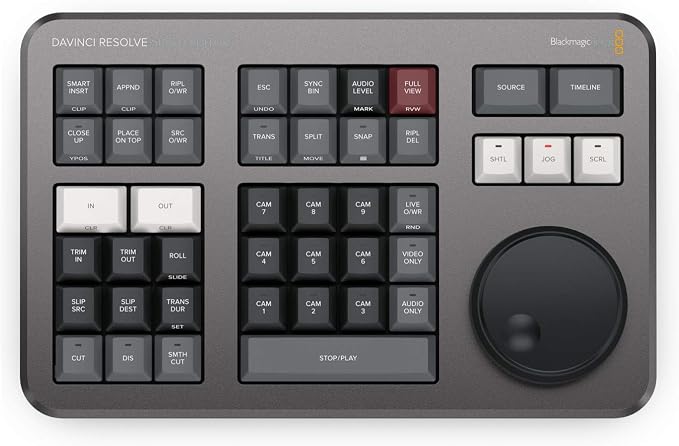
For editors who spend most of their time in DaVinci Resolve, the Speed Editor takes a very different approach. It is a dedicated editing control surface, so it makes the most sense for someone who wants physical editing controls alongside, or instead of constantly relying on, a conventional keyboard and mouse.
Its standout feature is the large search dial surrounded by dedicated editing buttons. Blackmagic designed the surface around the Cut page, with controls for functions including Smart Insert, Append to End, Ripple Overwrite, Place on Top, and Source Overwrite. The company’s editing functions documentation explains how these controls fit into the workflow.
The large dial is especially useful for scrubbing and precise trimming. Because we can physically turn the dial while working with the dedicated trim controls, the editing process can feel more tactile than navigating every adjustment with a mouse.
It is also practical for flexible workstation setups. The current specifications list USB-C and Bluetooth connectivity, along with an internal battery for wireless use. Blackmagic’s current tech specs also list support across current macOS, Windows, Windows on ARM, and supported Rocky Linux configurations.
There is one important catch: the Speed Editor is built specifically around DaVinci Resolve. That specialization is a strength for Resolve users, but it makes the device a much less obvious choice for someone whose main editor is Premiere Pro or another application.
Notes of caution:
- Skip it if: Your primary editing software is not DaVinci Resolve.
- Skip it if: You need a conventional QWERTY keyboard to handle most of your workstation input.
- Skip it if: You mainly want color-printed shortcut references.
3. JCPal Davinci Resolve Shortcut Guide Keyboard Cover for MacBook
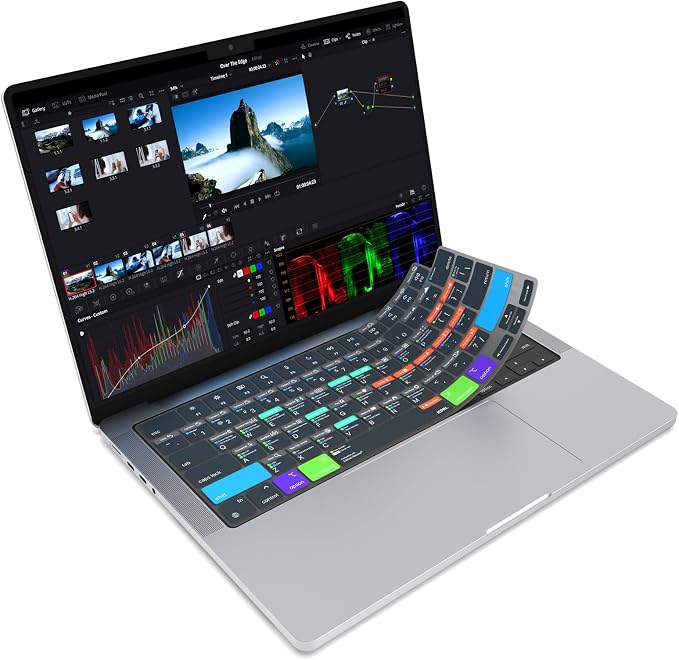
For MacBook users learning DaVinci Resolve, this JCPal cover is a simple way to bring shortcut guidance directly onto the keyboard you already use. Rather than adding another device to your desk, it turns the existing keys into a convenient visual reference.
JCPal says the VerSkin design provides access to more than 120 DaVinci Resolve shortcuts, using recognizable icons and color-coded combinations. The manufacturer product page also describes its form-fitted 0.3 mm silicone construction and washable surface.
That approach can be especially helpful while we are building muscle memory. Instead of stopping to look up a command, we can glance down and find the shortcut directly on the keyboard. The cover also provides an extra barrier against dust and liquid spills while it is in place.
Compatibility is the part we should pay closest attention to. JCPal lists specific MacBook Pro and MacBook Air generations, including 2026 models, and specifies a US English ANSI layout for this Resolve version. Its current compatibility list is worth checking before ordering.
The trade-off is that a cover does not add any new hardware controls. We still use the laptop’s existing keys, so the real benefit comes from visibility and protection rather than physical dials, programmable buttons, or dedicated transport controls.
A few things to note:
- Skip it if: You use Windows or a MacBook keyboard layout that is not supported.
- Skip it if: You already know your Resolve shortcuts and want dedicated physical editing controls.
4. JCPal Adobe Premiere Shortcut Guide Keyboard Cover
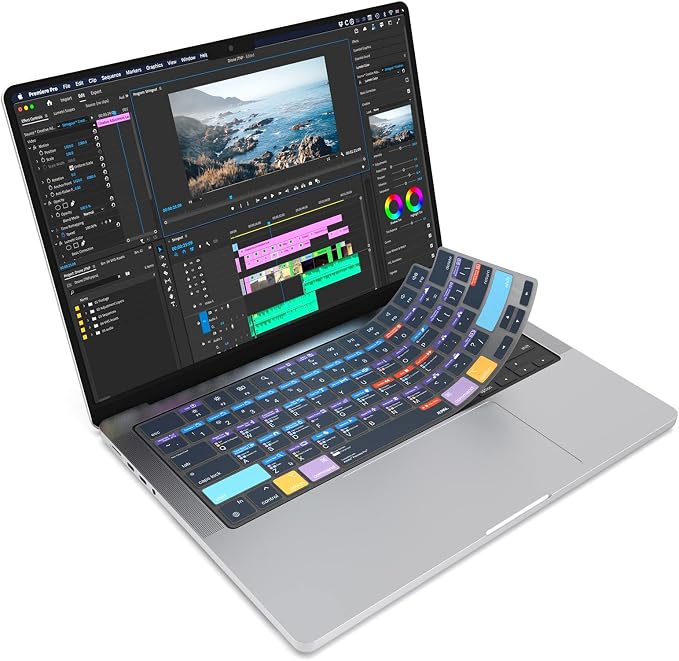
For MacBook editors working in Adobe Premiere Pro, this JCPal cover offers the same visual-learning idea with a Premiere-focused shortcut layout. It is a natural fit for students, newer editors, and mobile creators who want useful references available without adding another device.
JCPal says the cover displays more than 90 Premiere Pro shortcuts using recognizable icons and color-coded combinations. Its product specifications describe the semi-transparent, form-fitted 0.3 mm silicone construction as washable and designed to sit over the keyboard.
That visual approach is useful when we are still learning where commands live. Premiere Pro also lets us customize keyboard shortcuts, as explained in Adobe’s shortcut guidance, so the cover can work well as a familiar starting point while we develop a faster editing routine.
Again, exact fit matters more than the shortcut count. JCPal lists supported MacBook Pro, MacBook Air, and MacBook Neo models, along with US ANSI and EU ISO options. We should therefore match both the MacBook model and keyboard layout before buying.
Its main limitation is that it remains a learning and reference aid rather than a programmable controller. It cannot give us a dial or dedicated editing controls, and its usefulness falls considerably if we regularly switch between different editing applications.
A few cautions:
- Skip it if: You edit primarily on Windows or use an unsupported keyboard layout.
- Skip it if: You want customizable macro controls instead of printed shortcut references.
5. KB Covers Adobe Premiere Pro Keyboard for Windows PC
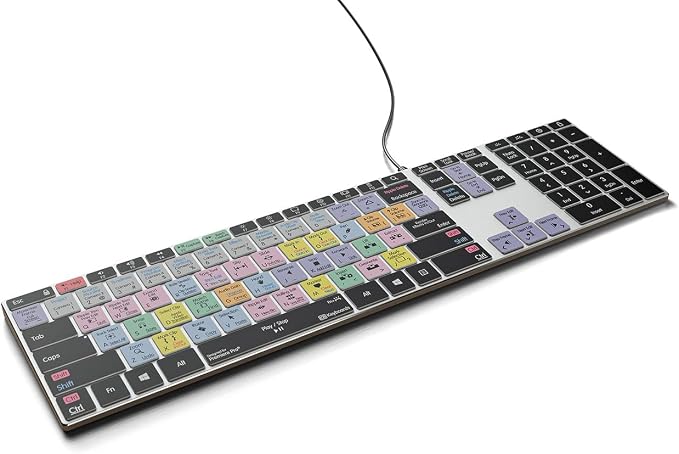
For Windows editors who want shortcut guidance built into a full desktop keyboard, the KB Covers Premiere Pro keyboard is a straightforward choice. It is aimed at fixed workstations where we want one keyboard to handle both normal typing and Premiere editing commands.
The current range combines familiar key legends with grouped shortcut colors and icons. KB Covers describes its Backlit Pro Aluminum option as having four levels of backlighting and an aluminum enclosure, while its official product details explain the keyboard’s Premiere-focused layout.
The full-keyboard format can be convenient because we do not have to keep a separate shortcut reference beside us. We can type normally, then move straight into editing commands while the relevant visual cues remain on the keys. That makes it particularly practical for a dedicated editing desk.
KB Covers offers Premiere Pro keyboards and covers for both Windows and macOS, and its product information includes a one-year warranty. Since keyboard layouts can differ, we should still confirm that the exact version and layout match our PC before ordering.
The main trade-off is the format itself. A full keyboard takes more desk space than a shortcut cover or compact controller, and its shortcuts are specialized for Premiere Pro. That makes it less appealing for editors who frequently move between different applications.
Notes of caution:
- Skip it if: You primarily edit on a MacBook and want a low-profile cover.
- Skip it if: You prefer a compact controller that leaves more room on your desk.
Final Thoughts
We should start with software compatibility, then decide whether visible shortcut references or dedicated controls will make the bigger difference for our workflow. Covers are especially useful for learning and quick recognition, while programmable pads and editing surfaces can give us more direct physical control.
The right choice also depends on your computer, keyboard layout, desk space, and how much you type versus edit. Choose the format that removes the most repetitive friction from your workflow, and your editing setup will feel much more natural.
Be First to Comment