Video editing puts your hand through hours of small, repeated movements, from trimming clips to adjusting timelines and navigating crowded interfaces. A mouse that feels fine for quick browsing can become frustrating during a long edit, especially when your hand or wrist never seems to settle comfortably.
Choosing a replacement is not straightforward. Ergonomic shapes, trackballs, gaming mice, and simple wireless models address different needs, and a long feature list does not automatically mean better comfort or control. The wrong fit can create new annoyances rather than solve the problem.
We carefully researched the category, checked manufacturer specifications and current product information, and compared the options for precision, shortcut access, comfort, connectivity, and practical limitations. This guide brings together five distinct choices to help you narrow the field based on how you edit, your workspace, and the way your hand prefers to move.
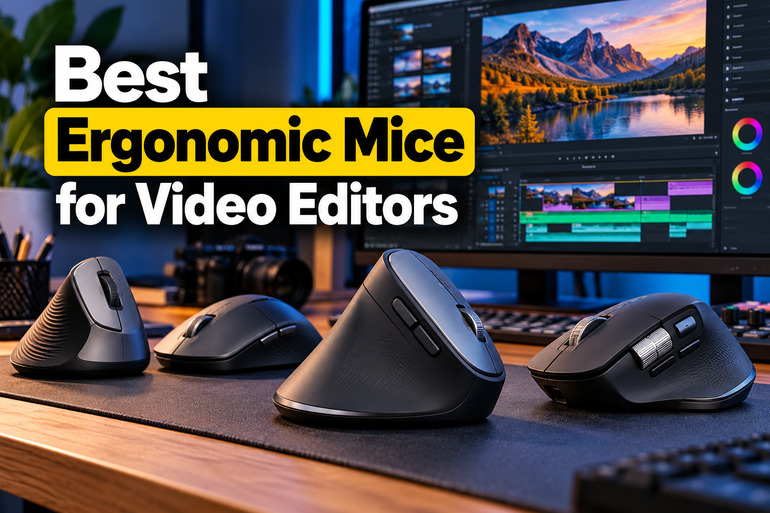
How We Selected the Best Ergonomic Mice for Video Editors
We compared how each mouse fits a video-editing desk rather than treating gaming specifications or the word “ergonomic” as proof of comfort. Manufacturer documentation was particularly useful for verifying button counts, connectivity, adjustability, and software features. For older products, we also considered whether current availability or support raises practical questions.
We looked at whether each device changes the movement itself, adds shortcut access, or simply provides a more comfortable shape. The OSHA mouse and trackball guidance reinforces the importance of suitable fit, relaxed gripping, adjustable pointer speed, and neutral wrist positioning.
-
Fit and hand posture: A shape or trackball is only helpful if it suits your hand and lets you maintain a relatively neutral wrist position.
-
Cursor control: Adjustable sensitivity helps you tune precise selections and movement across large displays to your preferences.
-
Shortcut access: Programmable buttons can reduce repetitive keyboard trips when you can assign commands reliably.
-
Connectivity and power: Choose wired, wireless, receiver-based, or Bluetooth connectivity that works with the ports you actually use.
-
Software compatibility: Button customization and software support can vary by operating system, especially on older or simpler devices.
-
Support and availability: Clear model details, current documentation, and reasonable return terms matter when purchasing older stock.
Each recommendation deserves consideration for a different workflow, not because one design suits everyone. Here is where each can be useful.
Best Ergonomic Mice for Video Editors
We selected mice that offer different approaches to controlled, comfortable editing, from button-rich designs to a trackball and a sculpted office mouse. Your best match depends on your grip, software habits, and available desk space.
1. Logitech G502 LIGHTSPEED Wireless Gaming Mouse
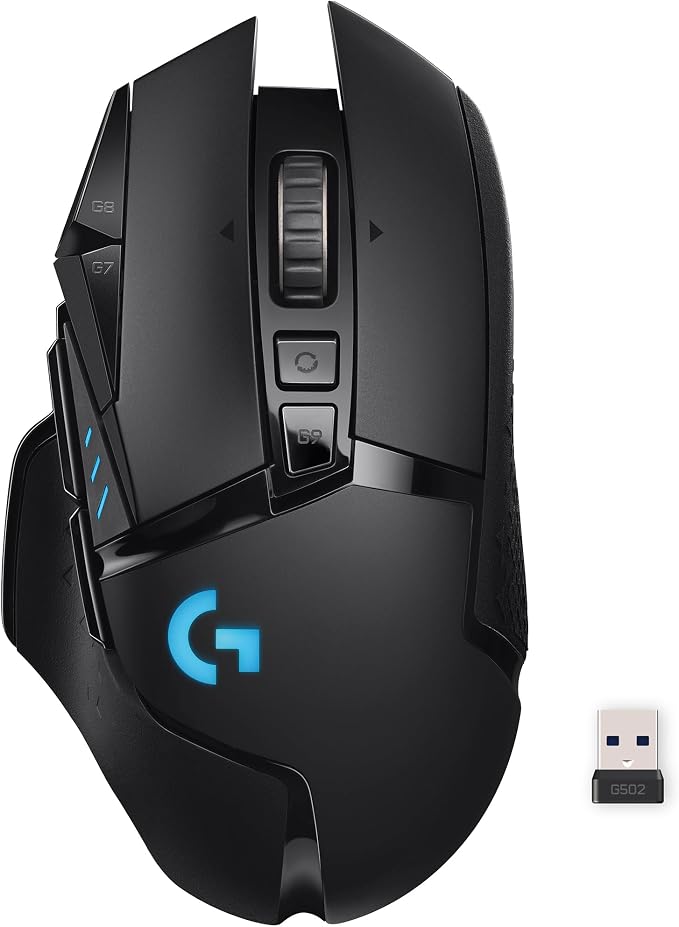
The Logitech G502 LIGHTSPEED is a strong fit for video editors who want wireless freedom and shortcut access without giving up a familiar palm-style mouse. Its 11 programmable buttons can be assigned to repeated commands, helping keep common editing actions within thumb or finger reach.
The HERO 25K optical sensor and adjustable sensitivity let you tune cursor movement for a large 4K timeline, a multi-monitor setup, or pixel-level selections. It supports settings up to 25,600 DPI, but a comfortable, controllable setting matters more than the maximum number. Its official specifications explain the available sensitivity range.
The scroll wheel switches between regular and hyper-fast scrolling and tilts left or right, which can help when navigating long timelines or horizontal tracks. Onboard memory and Logitech G HUB also let you configure button assignments and retain profiles for different tasks, as described in the manufacturer’s technical documentation.
Wireless operation uses Logitech’s LIGHTSPEED receiver, with a quoted battery life of up to 60 hours with lighting off or 48 hours using default lighting. The battery figures provide a useful planning reference. The 114-gram body and optional weights let you adjust the feel, but this is not a lightweight mouse.
For editing, map commands such as undo, split, timeline zoom, or brush size only where your application supports keyboard shortcuts. Start with low-risk actions and test mappings before a project. The receiver occupies a USB port, and the many buttons take time to learn.
Who should skip it:
-
Skip it if you prefer a lightweight mouse or need a shape designed specifically for left-handed use.
-
Skip it if you want a vertical grip or a trackball that keeps your arm largely in one place.
-
Skip it if a USB receiver would be inconvenient for your computer setup.
2. Logitech Trackman Marble Trackball Mouse
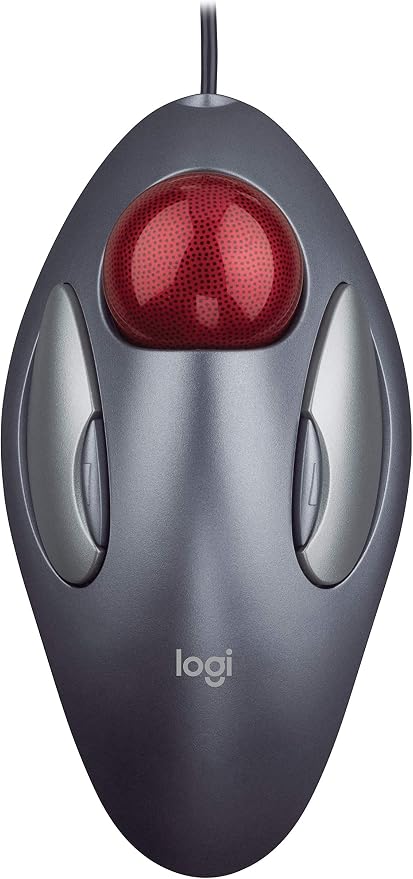
The Logitech TrackMan Marble suits editors who want to minimize repeated arm sweeps, especially at a crowded desk or multi-monitor station during long sessions. Instead of moving the whole device, you roll its top-mounted ball with your fingers while the stable base stays put.
Its ambidextrous wired design accommodates right- or left-handed use, which is helpful if you want the option to change hands. Four buttons provide left and right clicks plus two smaller navigation buttons; you can customize the smaller buttons using Logitech software for quick browser navigation. The official setup guide illustrates the button layout and basic operation.
Because cursor movement comes from the ball, the Marble needs little desk travel and no large movement area. This can help with timeline selection at compact workstations, although finger-driven motion feels different from a conventional mouse. Its stationary base stays in place on crowded desks.
The main trade-off is its older, straightforward design: it is a wired USB trackball, not a modern high-DPI mouse with dedicated editing shortcuts. Logitech’s setup guide says enhanced button features depend on its software, so check operating-system compatibility before relying on custom assignments and profiles.
For best results, begin with moderate pointer speed and adjust it gradually, practicing short movements before an editing session. OSHA’s ergonomic guidance notes that a trackball may feel less fatiguing for some users, but personal fit matters and no single pointing device suits everyone. Avoid gripping tightly.
A few cautions:
-
Skip it if you need wireless freedom or a modern scroll wheel.
-
Skip it if your work depends on custom buttons and you cannot confirm software compatibility.
3. Razer Basilisk V3 Customizable RGB Wired Ergonomic Gaming Mouse
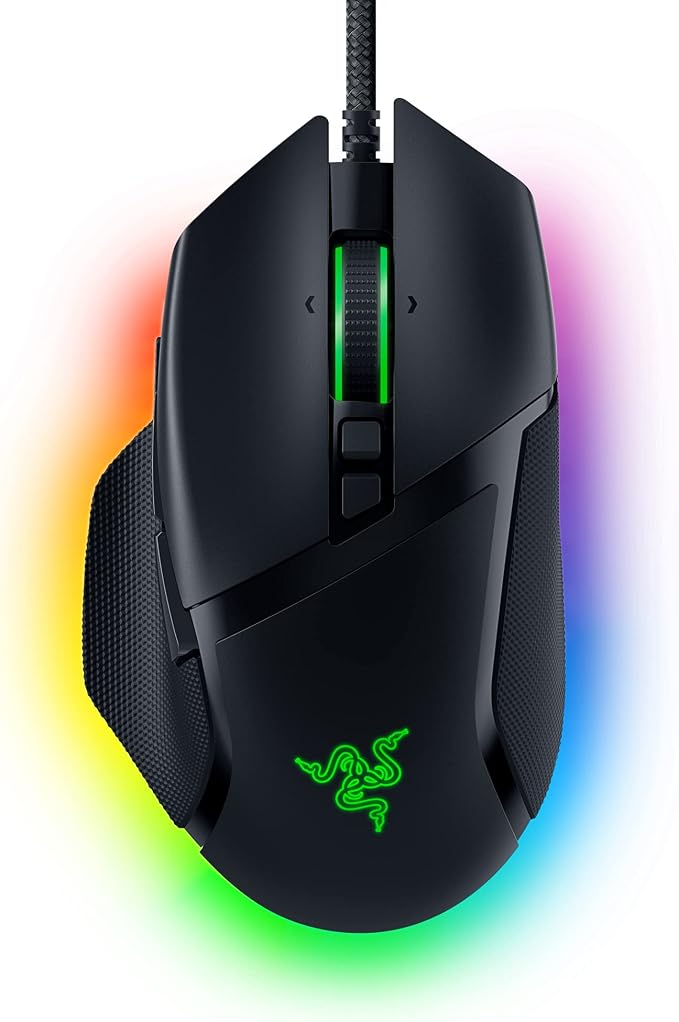
The Razer Basilisk V3 suits editors who prefer a conventional right-handed mouse but want extensive control mapping and precise control. Its 11 programmable buttons can be assigned to shortcuts, macros, or application commands through Razer Synapse, reducing trips back to the keyboard when configured carefully.
Its optical sensor supports settings up to 26,000 DPI, giving you plenty of adjustment for fast navigation or slower cursor control. The high ceiling is useful only if it suits your setup; a lower, predictable setting may be easier for detailed edits. Razer’s technical specifications confirm its sensitivity range.
The HyperScroll tilt wheel offers four-way tilt as well as notched and free-spinning modes. That combination can help with long timelines, browsing large project folders, or moving across wide interfaces, while extra buttons can hold commands you repeat throughout demanding workflows. The manufacturer explains the scroll-wheel modes in its feature documentation.
The mouse is wired and weighs about 101 grams without its cable. Its flexible Speedflex cable and five onboard profiles make it a capable desk tool, but its contoured shape is designed for right-handed use and may not fit every hand equally well. The manufacturer’s specifications confirm its weight and profile support.
To get the most from it, install Razer software, then map a few frequently used commands and practice until they become consistent. Keep profiles simple, and verify each shortcut in your editing app. Customization takes time, and software-dependent features may be unnecessary for casual editors.
A few things to note:
-
Skip it if you need a wireless mouse or prefer a left-handed or ambidextrous shape.
-
Skip it if you would rather avoid installing configuration software.
4. TECKNET Ergonomic Mouse, Bluetooth 5.0/3.0 and USB-A
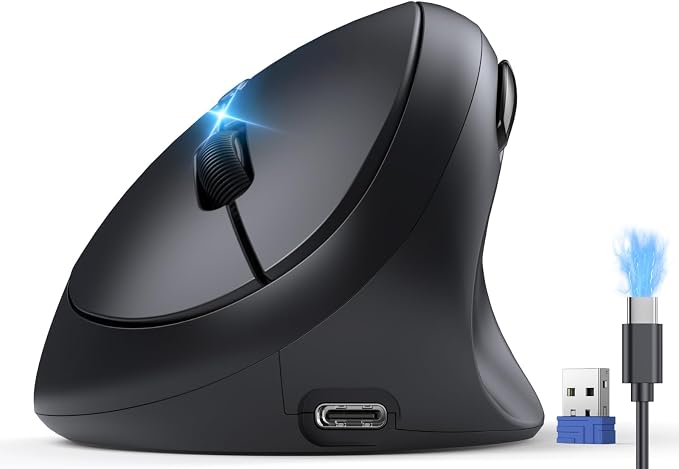
The TECKNET ergonomic wireless mouse is intended for editors who want a vertical-style grip and the flexibility to work without a cable. The product listing describes quiet clicks, a rechargeable battery, and wireless connections through Bluetooth or a USB-A receiver. It suits desks where cable management matters.
The listed sensor offers six sensitivity levels, reaching 4,800 DPI. That range can support slower pointer movement for close selections and faster travel across large displays, although DPI alone does not guarantee precise editing; the best setting is the one you can control steadily. TECKNET’s manufacturer documentation describes comparable connectivity and sensitivity options in its wireless mouse range.
Wireless connectivity is useful when switching between a desktop and laptop or keeping the desk clear. The listing describes Bluetooth 5.0/3.0 plus a 2.4 GHz USB receiver, but confirm the exact receiver and connection modes on the seller page before ordering.
Quiet-click buttons can make a shared room less distracting, and the rechargeable design avoids routine disposable-battery changes. TECKNET sells several similarly named mice, however, and their shapes, power arrangements, and connectivity differ. Compare the different mouse models and exact product details carefully before checkout.
For video editing, start with moderate sensitivity and try the shape during browsing before long sessions. Check whether the side buttons work with your operating system, particularly on macOS, and remember that a vertical grip may feel unfamiliar until you adapt. Practice before a deadline.
A few things to check:
-
Skip it if you want many programmable editing shortcuts or onboard workflow profiles.
-
Skip it if the exact model, included receiver, or return terms are unclear.
-
Skip it if you require confirmed compatibility with specialized editing software and peripherals.
5. Microsoft Sculpt Ergonomic Mouse
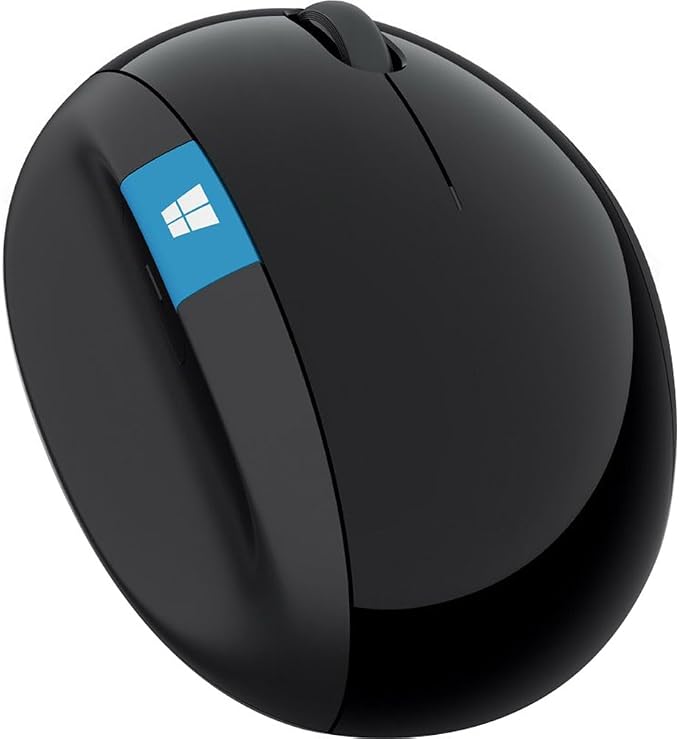
The Microsoft Sculpt Ergonomic Mouse suits right-handed editors who want a sculpted shape and thumb support instead of a flat mouse. Its rounded body is designed to encourage a more natural hand and wrist position, although comfort depends on your hand and work style. Microsoft’s product description emphasizes its comfort-oriented design.
The design prioritizes hand posture over shortcut customization. It may suit editors who spend long periods at a desk and prefer a shaped grip, especially if a conventional mouse encourages tight gripping, but it is not a specialist controller for timeline or color-grading commands.
Microsoft’s store description emphasizes its comfort-oriented shape, but the current business listing says the product is not available directly from Microsoft. Shoppers may encounter older stock or used units, where condition, receiver inclusion, return options, and available support documentation need extra scrutiny before buying.
Unlike a modern gaming mouse, the Sculpt is intended for pointing and scrolling rather than programmable buttons or editing profiles. Before buying, verify the exact model and connection hardware, and check that your computer has the ports or adapters needed for the receiver before purchase.
For an older unit, inspect the shell, scroll wheel, battery compartment, and receiver, then test pointer movement before relying on it for paid work. Its sculpted shape may suit some users, but it cannot compensate for a poor desk setup or uninterrupted sessions.
A few cautions:
-
Skip it if you require a currently stocked model directly from Microsoft.
-
Skip it if you need programmable shortcuts, modern profile management, or verifiable current wireless hardware.
Final Thoughts
For video editing, prioritize a grip that feels natural, pointer sensitivity you can control, and shortcuts that reduce repeated movements. High DPI or extra buttons help only when the design fits your hand and the features work with your editing software.
Check the exact model and connection hardware before buying, especially for older or similarly named devices. Give a new shape time to feel familiar, keep your mouse close to the keyboard, and take regular breaks. The right mouse should support a steady workflow, not promise comfort by itself.
Be First to Comment