Photo retouching, product-image cleanup, and graphic design often demand more precision than a mouse can comfortably provide. A drawing tablet gives us better control over brush strokes, selections, masks, and fine adjustments, making detailed editing more manageable.
Choosing the right tablet can be confusing, especially when manufacturers advertise different pressure levels, screen resolutions, and color-gamut specifications. Some models are compact and screenless, while others provide a large display for drawing directly on images. Understanding these differences matters when equipping a home office or creative workspace.
We researched the category, examined manufacturer specifications, and compared five drawing tablets suited to different editing needs. Our recommendations cover compact options, versatile screenless tablets, and professional-style pen displays, helping you identify the features that matter most for your workflow.
How We Selected the Best Drawing Tablets for Photo Retouching and Graphics
We compared manufacturer documentation, technical specifications, and compatibility information to identify the strengths and limitations of each model. Our focus was on practical editing needs rather than assuming that higher specification numbers automatically translate into better results.
Because these tablets serve different workflows, we evaluated screenless models separately from pen displays. We also considered model revisions and distinguished advertised color-gamut figures from documented calibration information.
-
Active drawing area: Enough room reduces cramped hand movements, but larger areas demand more desk space and pen travel.
-
Pressure and tilt response: These controls help compatible brushes respond naturally, although software and settings still shape the output.
-
Shortcut controls: Programmable keys and touch controls can reduce keyboard trips during repetitive editing.
-
Display and color: For screen tablets, we checked resolution, gamut figures, factory-calibration claims, and screen availability.
-
Connection and compatibility: Ports, wireless options, operating-system support, and host-device requirements determine whether a tablet fits your setup.
-
Practical dimensions: Weight, thickness, stand angle, and footprint matter when you need to work comfortably for extended sessions.
These criteria helped us distinguish compact everyday tools from larger, display-based options. The following recommendations address different needs rather than assuming one tablet suits every creative professional.
Best Drawing Tablets for Photo Retouching and Graphics
These five selections cover screenless tablets through large pen displays. The right choice depends on how you prefer to draw, the space available on your desk, and the level of display detail your work requires.
1. Wacom Intuos Small, Wired Graphic Drawing
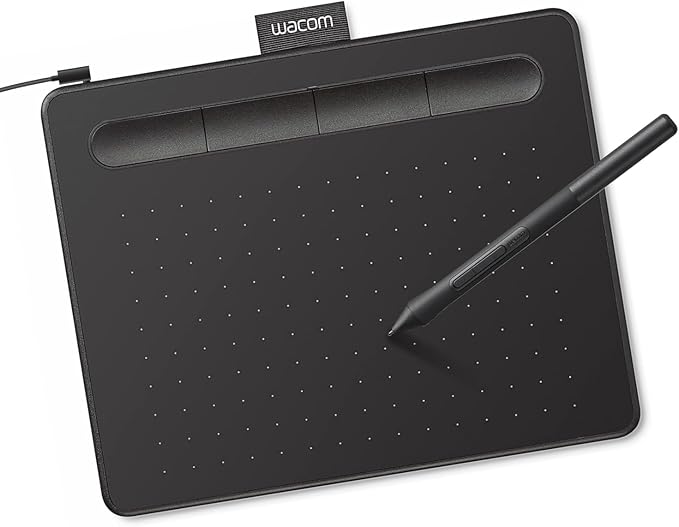
The Wacom Intuos Small suits beginners, freelancers, and home-office creatives who want more control over masks, brush strokes, and fine adjustments without adding another screen to the desk. It works best for editors comfortable watching their main monitor while drawing on a separate surface.
The wired CTL-4100 offers a 6.0 × 3.7-inch active area and a battery-free Pen 4K with 4,096 pressure levels, according to Wacom’s official specifications. Compatible brushes can respond to how firmly you press, although software and brush settings still shape the result.
Four customizable ExpressKeys can be assigned to application-specific commands, keeping common actions close at hand. It connects by USB, and Wacom lists Windows, macOS, Android, and ChromeOS compatibility for the Intuos family. Confirm support for your exact system before installation.
Its main advantages are a thin profile, a listed weight of approximately 230 grams, and a footprint that fits beside a laptop. It has no built-in display, so your pen hand and eyes work on separate surfaces, which takes some adjustment.
For best results, install the correct Wacom driver, map the active area to your editing monitor, and assign keys to commands such as undo or brush size. Begin with moderate sensitivity, then fine-tune it in your software after a few editing sessions.
Who should skip it:
-
Skip it if you want to draw directly on a built-in screen.
-
Choose a larger active area for wide-monitor work that involves broad hand movements.
-
Wireless buyers should check CTL-4100WL separately; this named wired model is not the Bluetooth edition.
2. HUION Inspiroy H950P 8×5-Inch Drawing Tablet
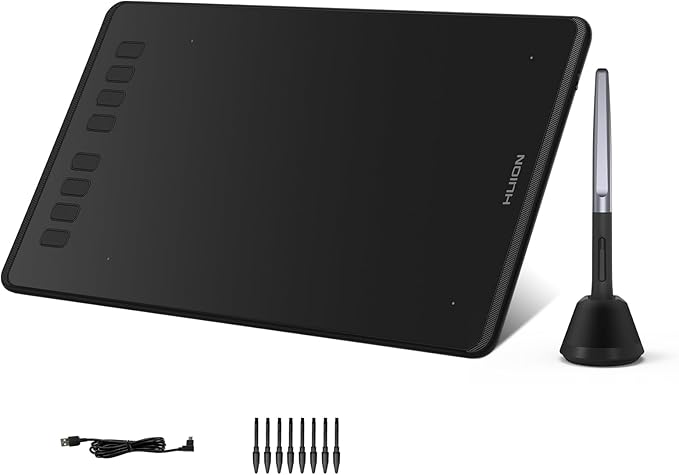
The HUION Inspiroy H950P fits freelance designers, digital artists, and photo retouchers who need more working room and shortcut controls without paying for a built-in display. It is a screenless tablet, so you continue viewing images on your computer monitor.
Its 8.7 × 5.4-inch working area gives your hand more space than a compact small-format tablet. The battery-free PW100 pen supports 8,192 pressure levels, ±60-degree tilt, and 5,080 LPI resolution, according to HUION’s official specifications. These features matter when compatible brushes use pressure and tilt.
Eight programmable press keys let you assign frequent commands, while the symmetrical layout accommodates left- or right-handed use. The tablet is only 8 mm thick, but it uses a Micro USB connection and has no wireless connectivity, so cable and port compatibility matter.
HUION lists Windows 7 or later, macOS 10.12 or later, Android 6.0 or later, and Linux support. Android use also depends on OTG support and an appropriate adapter. That breadth can help with mixed-device setups, but operating-system support does not guarantee every art app is compatible.
For a smoother workflow, install the model-specific driver, check that your editing app receives pen pressure, then map the keys to tasks such as zoom, undo, or brush switching. Tilt shading also depends on app support, so confirm compatibility and enable that option in settings.
Who should skip it:
-
Skip it if your setup requires a tablet with a built-in display.
-
Look elsewhere if Bluetooth or cable-free desk use is essential.
-
USB-C-only devices may require a compatible adapter for its Micro USB connection.
3. HUION Kamvas Pro 16 Drawing Tablet With Screen
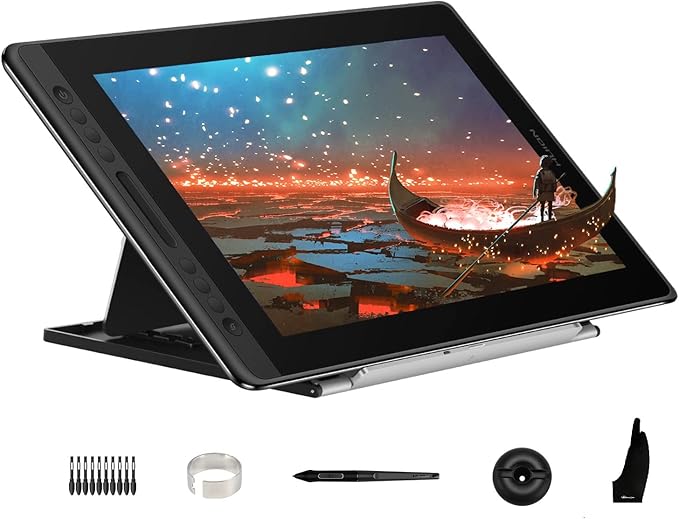
The HUION Kamvas Pro 16 is for photographers and designers who prefer drawing directly on an image rather than looking down at a separate tablet. The specified 15.6-inch, 120% sRGB model matches HUION’s original GT-156 version, so check the GT-156 specifications before purchase.
The 15.6-inch IPS display offers 1920 × 1080 resolution and a listed 120% sRGB gamut volume. HUION also specifies full lamination and etched anti-glare glass, intended to reduce the visible gap between pen tip and image. Gamut volume alone does not establish color accuracy.
The battery-free PW507 pen offers 8,192 pressure levels and ±60-degree tilt, while six programmable keys and a touch bar keep common adjustments close. For retouching, that combination can support local brushwork and frequent tool changes without forcing every command through the keyboard.
This display weighs about 1.35 kg and measures roughly 438 mm wide, so it needs more desk space than a small tablet. It is a computer-connected display, not a standalone device, and HUION’s specifications do not state a factory ΔE accuracy figure for this version.
Before using it for final color decisions, verify the GT-156 connection requirements for your computer and calibrate the display within your workflow. Keep your main monitor calibrated too, because a wider gamut number alone does not ensure that two displays match.
Who should skip it:
-
Skip it if you need a 4K panel for viewing fine details at native resolution.
-
Choose a non-display tablet if you prioritize portability and minimal cable clutter.
-
Consider a newer revision if the exact GT-156 port and software fit is unclear.
4. Wacom Intuos Medium Bluetooth Graphic Drawing Tablet
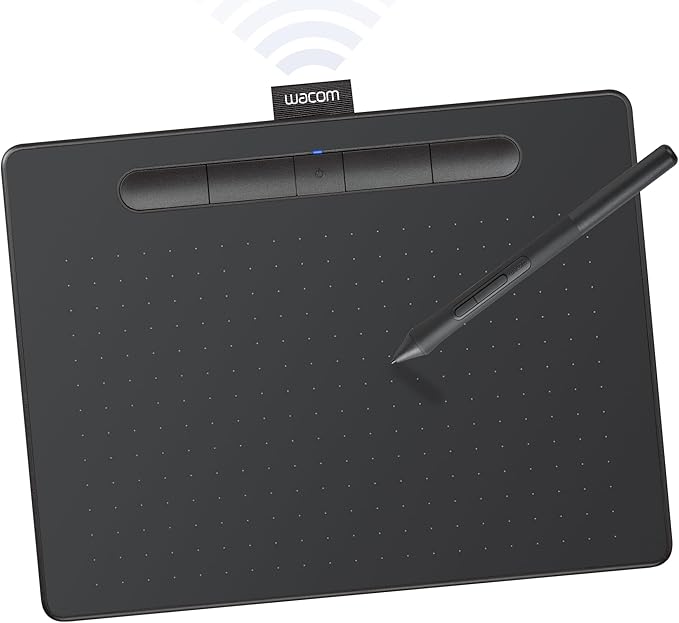
The Wacom Intuos Medium with Bluetooth is a strong fit for editors who want more pen movement than a compact tablet offers but still prefer working on their main monitor. Its larger active surface suits regular retouching, illustration, and detailed masking in a home studio.
The CTL-6100WL has an 8.5 × 5.3-inch active area and a battery-free Pen 4K with 4,096 pressure levels, according to Wacom’s official specifications. The extra room can feel less cramped on a larger monitor, while compatible brushes vary their output with pressure.
Four customizable ExpressKeys help keep recurring app commands near the drawing hand. Bluetooth allows wireless use, and a USB connection is available too. Wacom lists Windows, macOS, Android, and ChromeOS compatibility for Intuos, though your exact configuration and editing software should be checked.
Because this is the Bluetooth version, Wacom lists a built-in rechargeable battery, at least 15 hours of continuous operation, and charging that can take up to 3.5 hours in its technical specification sheet. At approximately 410 grams and 264 × 200 mm overall, it needs more room than the Small model.
For best results, start by mapping the larger active area to your full editing display, then assign the ExpressKeys to actions you repeat often. Use USB while you are setting up or charging, and switch to Bluetooth when you prefer a less cluttered desk.
Who should skip it:
-
Skip it if your desk has too little room for a medium-size tablet.
-
Choose a pen display if looking between separate surfaces slows your editing.
-
Wired-only buyers should check the CTL-6100 rather than this WL Bluetooth model.
5. HUION Kamvas Pro 27 4K UHD Drawing Tablet
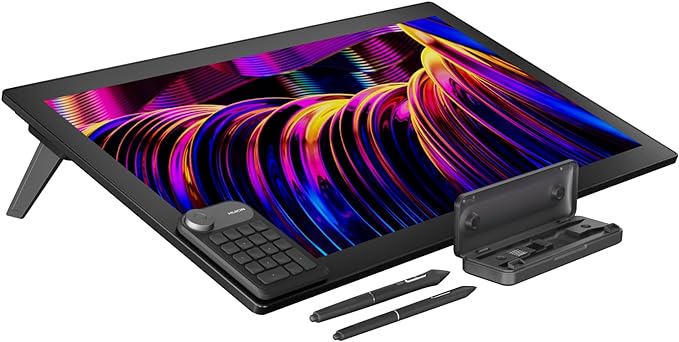
The HUION Kamvas Pro 27 is for established retouchers, illustrators, and small creative studios that want a large canvas for detailed work directly on-screen. The GT2701 specifications identify the 60Hz model, rather than the newer GT2702 144Hz version, so checking the model code matters.
The 27-inch panel runs at 3840 × 2160 4K resolution and lists 99% sRGB, 98% Adobe RGB, and 97% DCI-P3 coverage, plus 1.07 billion display colors. That broad coverage is useful for color-aware work, but gamut figures alone do not prove that two displays will match.
HUION says each GT2701 receives factory hardware calibration using a 3D LUT, with a report indicating average ΔE below 1.5. The display also supports ten-point finger touch, uses fully laminated anti-glare glass, and has an integrated 20-degree stand, according to the manufacturer’s specifications.
This is a substantial studio device, weighing about 8 kg and measuring roughly 656 × 405 mm. It connects to a compatible computer over HDMI 2.0, DisplayPort 1.4, or USB-C. There are no built-in ExpressKeys, although HUION’s official GT2701 bundle lists a Keydial Mini.
For color-critical use, select the relevant color mode and keep the calibration report with your project setup. Calibrate other displays that share the workflow as well. Before buying, confirm your computer supports the chosen video connection and check exact bundle contents, since reseller packages may differ from HUION’s own listing.
Who should skip it:
-
Skip it if you need a lightweight tablet that moves frequently between work locations.
-
It may be excessive for occasional edits or a desk without generous space.
-
Buyers wanting 144Hz should verify the GT2702 model specifically rather than assume this GT2701 offers it.
Final Thoughts
Choosing a drawing tablet starts with deciding whether you prefer drawing on a screen or controlling edits while looking at your main monitor. Next, match the active area to your display size and consider color accuracy, shortcut controls, and compatibility together rather than treating any single specification as a complete quality score.
Before ordering, confirm the exact model code, required ports, operating-system support, and included accessories. The most useful tablet is one that fits your working habits, physical workspace, and editing setup. Prioritize comfortable control and reliable integration, and your choice will be easier to justify over time.
Be First to Comment