A good webcam can make your live streams look clearer and more professional, whether you’re teaching online, hosting business presentations, demonstrating products, or building a channel around your expertise. Finding the right camera, however, takes more than picking one that promises Full HD video.
The tricky part is that two webcams advertising the same resolution can deliver quite different experiences. Autofocus, viewing angles, lighting adjustments, microphone quality, and privacy features all influence how comfortable and polished your broadcasts feel. Without comparing these details, it’s easy to choose a camera that doesn’t quite suit your setup.
We’ve researched the category, examined available manufacturer specifications, and compared five webcams for different streaming needs. Our recommendations range from straightforward USB cameras to established models with useful focusing features and a tripod-oriented alternative. We’ll walk you through their strengths, limitations, and practical considerations to help you find the right fit.
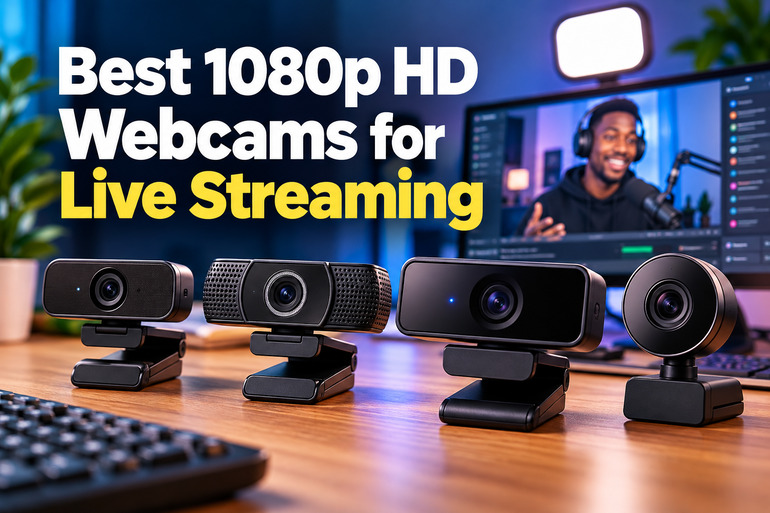
How We Selected the Best 1080p Webcams for Live Streaming
We focused on webcams that can deliver standard Full HD video through a typical computer setup. We examined manufacturer specifications and support information, paying particular attention to features that influence framing, motion, installation, privacy, and speech clarity during live broadcasts.
We also looked beyond product titles to separate confirmed capabilities from claims that need further verification. When an important specification wasn’t clearly documented, we treated that uncertainty as something worth considering rather than filling the gap with assumptions.
- Resolution and frame rate: We prioritized documented 1080p output and frame rates that suit your preferred streaming format.
- Framing and focus: The field of view and focus type help determine whether your face, workspace, and background look right on camera.
- Audio capability: Built-in microphones offer convenience, but their specifications help you decide whether a separate microphone would improve your setup.
- Privacy: A physical lens cover provides a simple way to block the camera when you’re finished streaming.
- Installation and compatibility: USB connectivity, operating system support, and available software controls can make setup much easier.
- Documentation and limitations: Clear manufacturer guidance helps you understand what a webcam can do and which important details remain uncertain.
These considerations helped us identify options for different streaming arrangements. Let’s look at what each webcam offers and where it might fit into your setup.
Best 1080p Webcams for Live Streaming
Whether you’re setting up your first livestream or improving an existing desk setup, these five webcams offer different combinations of convenience, framing, and privacy. Let’s take a closer look at what each one brings to the table.
1. NexiGo N60 1080P Webcam with Microphone, Software Control & Privacy
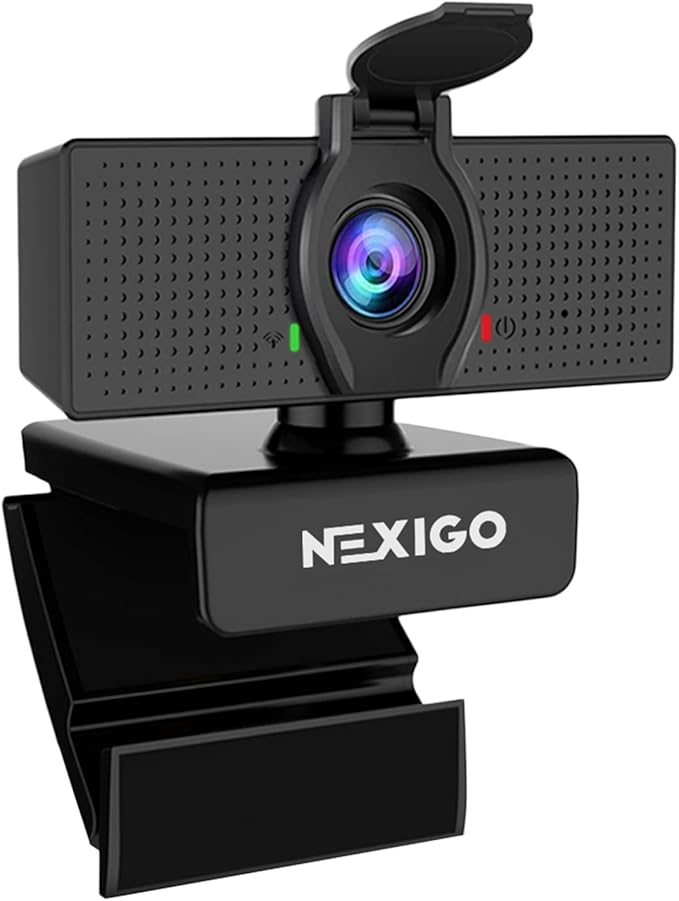
For solo creators, coaches, and small businesses getting into livestreaming, the NexiGo N60 keeps things simple. It connects over USB and is designed for everyday desk video, making it a practical starting point when you want a dedicated camera without building a complicated studio setup.
The N60 records Full HD video at 1920 × 1080 and 30 frames per second. NexiGo confirms these details in its technical specifications, alongside the camera’s fixed-focus design and 110-degree field of view. That combination works well for straightforward presentations and demonstrations.
Its wide viewing angle can capture more of your desk or surroundings, which is handy when showing products or involving another person. However, it may also reveal background clutter. The official product page describes USB plug-and-play functionality and an included privacy cover, keeping the setup relatively straightforward.
The built-in omnidirectional microphone offers a convenient starting point for calls and casual broadcasts. Still, anyone producing regular tutorials, interviews, or professional commentary may prefer a dedicated microphone positioned closer to their mouth. The main limitation is the fixed focus, which works best when you remain at a fairly consistent distance.
To get started, connect the camera, select it in your streaming software, and choose 1080p/30fps when available. NexiGo’s support guidance explains that lighting, computer performance, software settings, and other conditions can affect the resulting video. A little setup testing goes a long way.
Who should skip it:
- Creators who need autofocus or 60fps video.
- Streamers who want built-in lighting or tighter framing.
- Anyone expecting the onboard microphone to replace dedicated audio equipment.
2. Logitech HD Pro Webcam C920, Widescreen Video Calling and Recording
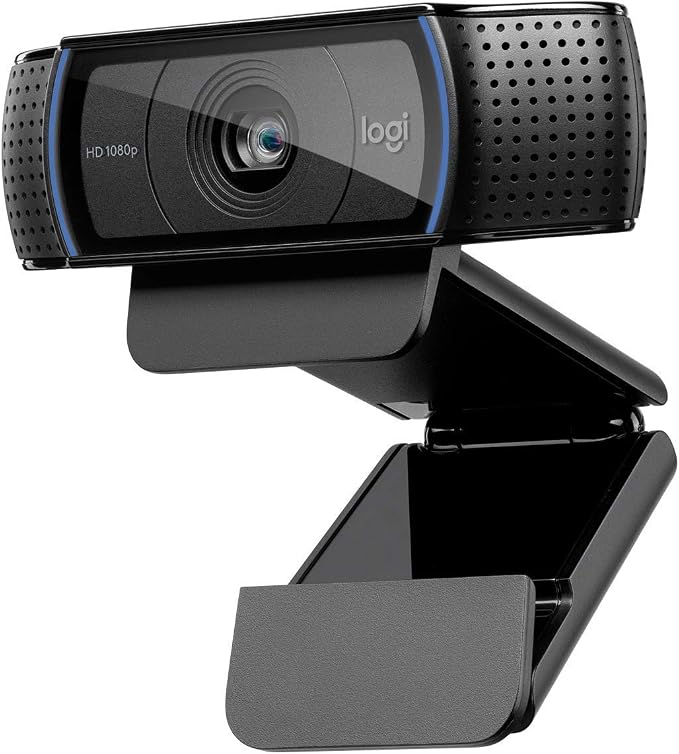
For creators who mainly stream from a desk, the Logitech C920 offers a familiar, straightforward approach to webcam video. Its relatively controlled viewing angle makes it worth considering for solo presentations, online teaching, and business broadcasts where you want the viewer’s attention to stay on you.
Logitech’s technical specifications list Full HD 1080p recording at 30fps, autofocus, and a glass lens. Autofocus is particularly helpful when you lean toward the camera, hold up a product, or move slightly during a demonstration.
The camera has a 78-degree diagonal field of view, which is narrower than the wide-angle options in this guide. That can make it easier to keep unnecessary background details out of your composition. Its dual stereo microphones also offer basic audio capture without requiring an additional microphone immediately.
One important detail is the distinction between the C920 and the C920S. Logitech lists the C920S with a privacy shutter, but you shouldn’t assume the standard C920 includes that same accessory. Check the exact version and package contents before ordering, especially if covering the lens between broadcasts matters to you.
For a clean setup, connect the webcam through USB, mount it near eye level, and select 1080p/30fps in your streaming application when supported. We would also recommend facing a light source and considering an external microphone if spoken audio is central to your content. Those adjustments can help create a more consistent broadcast.
Who should skip it:
- Creators who need 1080p/60fps for fast-moving content.
- Buyers who require a physical privacy shutter on the camera.
- Streamers who need a wide view for several presenters.
3. NexiGo N660 1080P Business Webcam, Dual Microphone & Privacy Cover
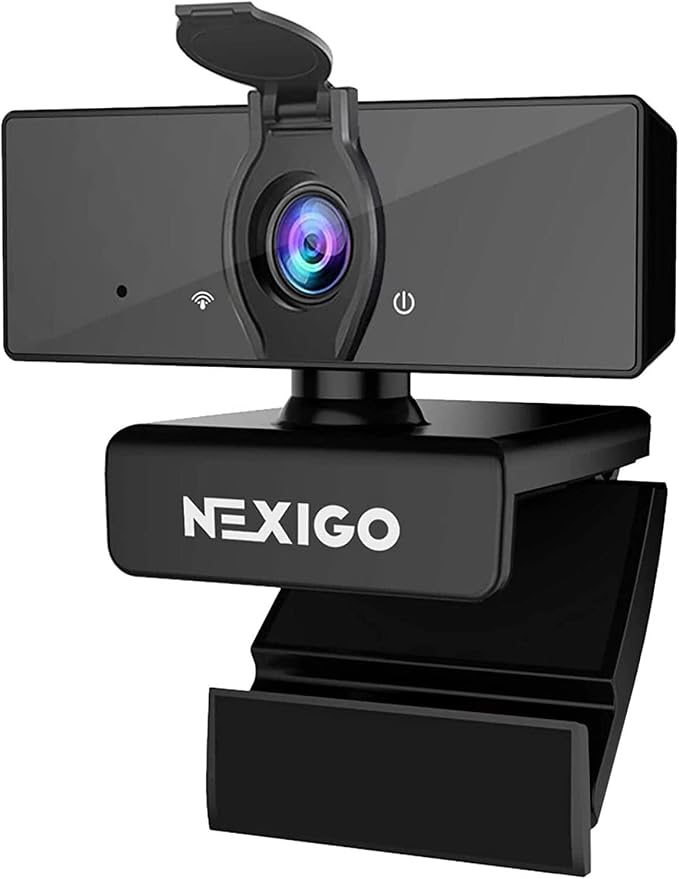
The NexiGo N660 is worth considering for trainers, solo streamers, and small teams who want a relatively wide view for presentations or demonstrations. Its published specifications describe a Full HD USB webcam intended for everyday computer use, making it an option for straightforward home-office broadcasting.
NexiGo’s technical information identifies 1920 × 1080 video at 30fps, a 110-degree field of view, and fixed focus. The wide angle captures more of the scene, which can be useful when showing objects or including another person, although it may make a solo presenter appear smaller.
The model also includes a privacy cover and can be mounted on a compatible tripod. Keep in mind that NexiGo identifies the tripod as a separate purchase, so the webcam itself doesn’t automatically give you a complete standalone mounting setup.
There’s one specification worth checking before buying. Although the retail title mentions dual microphones, the manufacturer’s technical information identifies an omnidirectional microphone without clearly confirming a two-microphone array. We would verify the exact version and package details rather than assume the title describes a confirmed microphone configuration.
Setting it up is straightforward: connect the webcam, select it as your video source, and match the capture settings to your streaming software. Since its focus is fixed, keep yourself or the object you’re demonstrating at a consistent distance. Good front-facing lighting can also help your picture look clearer and more balanced.
Who should skip it:
- Streamers who need 1080p/60fps output.
- Buyers who require verified dual-microphone specifications.
- Anyone expecting a tripod to be included automatically.
4. Logitech C920S HD Pro Webcam Full 1080p/30fps
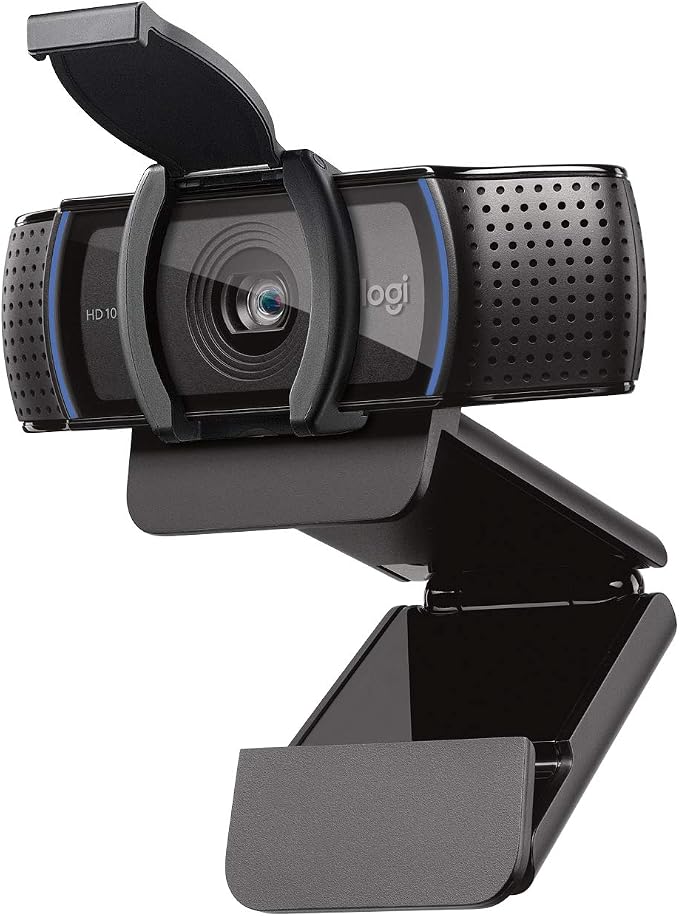
If you regularly host livestreams, online lessons, or business meetings from a desk, the Logitech C920S offers a useful combination of Full HD video and everyday convenience. Its built-in privacy shutter makes it particularly appealing when your camera stays connected between broadcasts or your workspace is shared.
Logitech’s official product details confirm 1080p video at 30fps, autofocus, a glass lens, and a 78-degree diagonal field of view. Autofocus helps keep your subject clear when you move slightly, while the narrower view works well for a single presenter.
The privacy shutter is a practical advantage over versions without an integrated cover. When you’re finished streaming, you can close it rather than remember to unplug the device. The camera also offers dual stereo microphones and automatic RightLight 2 correction to help adjust the image to changing indoor lighting.
Its field of view is better suited to a focused, one-person composition than a wide room shot. Logitech also identifies tripod-ready mounting in the technical specifications, giving you another placement option when a monitor-mounted camera doesn’t provide the angle you want. The separate tripod isn’t part of every package.
To make the most of it, position the camera close to eye level, face a light source, and select 1080p/30fps when your streaming software supports it. The built-in microphones are convenient for casual use, but a dedicated microphone may give you more control over spoken audio in interviews or tutorials.
Who should skip it:
- Creators who need 1080p/60fps or faster camera output.
- Anyone who prefers an especially wide-angle group view.
- Streamers who want integrated lighting.
5. Pro HD 1080p/30fps Webcam with Tripod, External USB Camera for PC/Laptop
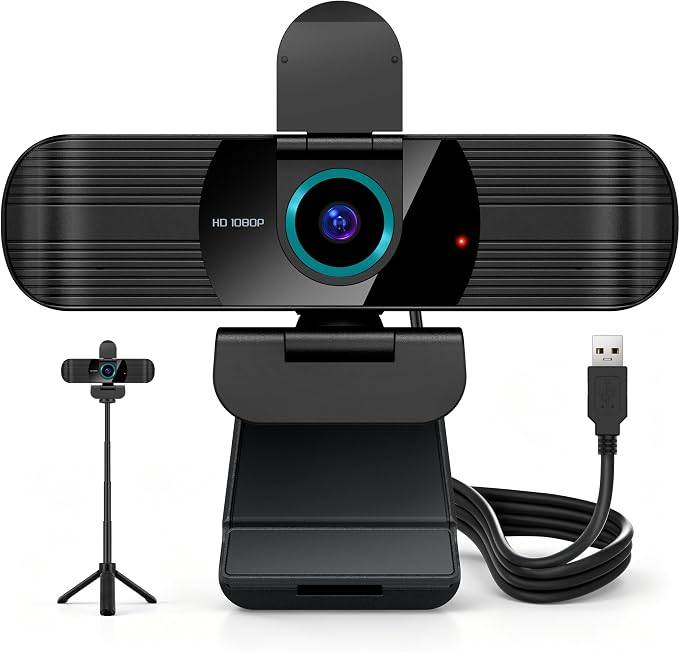
For beginners who want a webcam and a stand in one package, this Pro HD 1080p model may be worth investigating. The Amazon listing describes a USB camera for PCs and laptops with a tripod, making flexible placement the main attraction for a basic streaming setup.
The listing identifies 1080p video at 30fps, but we couldn’t verify a manufacturer specification sheet or current product manual for this exact model. As a result, details such as autofocus, field of view, microphone configuration, and operating system compatibility need closer checking before you rely on them.
The included tripod could make it easier to position the lens near eye level instead of balancing the camera on top of a monitor. That’s useful when your desk arrangement doesn’t provide a natural viewing angle, although we’d check the listing carefully to confirm exactly which mounting accessories come in the package.
The biggest drawback is the limited verified information available for the specific product. Resolution alone doesn’t tell you how quickly the camera focuses, how well it handles dim rooms, or whether its microphone captures speech clearly. Those details can make a real difference when you’re broadcasting regularly.
Before ordering, check the exact model name, USB connector, supported operating systems, tripod contents, warranty, and return policy. Once it arrives, test it in your chosen streaming application, confirm that the image stays stable, and check both the video and audio before scheduling a live broadcast. That simple test can help prevent avoidable surprises.
Who should skip it:
- Buyers who need documented autofocus and field-of-view specifications.
- Creators who depend on clear manufacturer support information.
- Streamers who require guaranteed 60fps output.
Final Thoughts
Choosing the right streaming webcam comes down to more than resolution. Pay attention to framing, focus, privacy, audio, and how easily the camera fits into your existing setup. Those practical details will influence your broadcasts just as much as the headline specifications, especially when you’re streaming several times a week.
Think about the content you create, the space available on your desk, and the equipment you already own. A well-positioned camera, dependable lighting, clear audio, and a stable computer and internet connection all help create a better viewing experience. Take the time to test your complete setup before going live, and build from there.
Be First to Comment