Color accuracy matters when we design logos, edit photographs, create brand assets, or prepare graphics for print. If our monitor displays colors incorrectly, even carefully chosen shades can look different to clients, printers, and people viewing our work on other screens.
Choosing the right calibration tool can be confusing, especially when different products promise accurate colors but serve different purposes. For freelancers, small design studios, and home office creatives, the challenge is finding a reliable solution without investing in features that do not support their actual workflow.
We researched the market, compared manufacturer specifications and software support, and selected five tools for different parts of the color-management process. One important distinction: two recommendations are camera-facing color reference targets, not monitor calibrators. We explain what each tool does so you can choose an appropriate solution for your work.
How We Selected the Best Monitor Color Calibration Tools
We compared official manufacturer specifications, software documentation, operating-system notes, and each product’s intended use. We prioritized verified details that help designers choose a tool suited to their actual color workflow.
A key distinction shaped our assessment: colorimeters measure displays, while ColorChecker targets help evaluate color captured by cameras. These targets can complement monitor calibration, but they cannot replace a device that measures the screen.
-
Direct display measurement: Does the tool read your monitor and create a profile rather than offering only a passive color reference?
-
Display compatibility: Are your panel type and brightness range covered by the manufacturer’s documentation?
-
Software support: Can you access installers and guidance for your current operating system?
-
Workflow fit: Do you need screen calibration, camera matching, print checks, or a combination?
-
Setup and portability: Will the sensor or target fit your desk, studio, or travel workflow?
-
Legacy-product risk: Are software updates, activation requirements, and product support clear before you buy?
These picks deserve consideration for different stages of color control, but they do not all perform the same job. Start with the tools that measure your display, then add capture-side references when your workflow calls for them.
Best Monitor Color Calibration Tools for Designers
Our recommendations cover display calibration devices and complementary color-reference tools. For monitor-only calibration, focus on the first two options and the final kit. The middle two are useful additions for designers who also produce photographs, videos, or print work.
1. Datacolor Spyder X Pro Monitor Calibrator
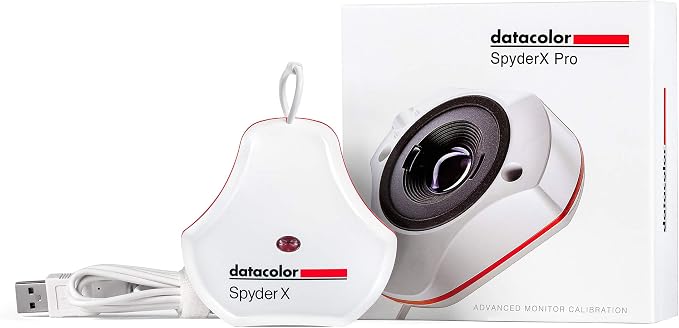
For freelance graphic designers, illustrators, and small studios using laptop or desktop displays, the Datacolor Spyder X Pro offers a straightforward introduction to hardware-based monitor calibration. Its sensor measures the screen, and the companion software builds a display profile instead of relying on visual judgment alone.
Datacolor’s feature overview describes a lens-based optical system and calibration that can finish in under two minutes. The software also provides a full-screen before-and-after comparison, while an integrated ambient-light sensor helps you assess the lighting around your workstation.
This combination suits designers who want a guided process and need to calibrate multiple laptop or desktop monitors. The manufacturer’s documentation describes repeated calibrations and room-light monitoring, which are useful when your workspace lighting changes throughout the day or when you move between displays.
Software support matters before purchasing. Datacolor’s Windows 11 guidance identifies compatible Spyder X Pro software, while its macOS 26 guidance confirms support for that operating system. Check the correct installer for your computer before activating the device.
One limitation is that the Spyder X Pro is an older generation than the newer Spyder models. It remains a practical option for supported setups, but designers seeking newer high-brightness calibration features should compare current specifications first. For best results, follow the manufacturer’s instructions and recalibrate when consistent color reproduction becomes important.
A few cautions:
-
Confirm that the included sensor, software activation details, and operating-system compatibility suit your setup.
-
Consider a newer generation if your workflow requires advanced high-brightness display calibration.
2. Datacolor Spyder5PRO
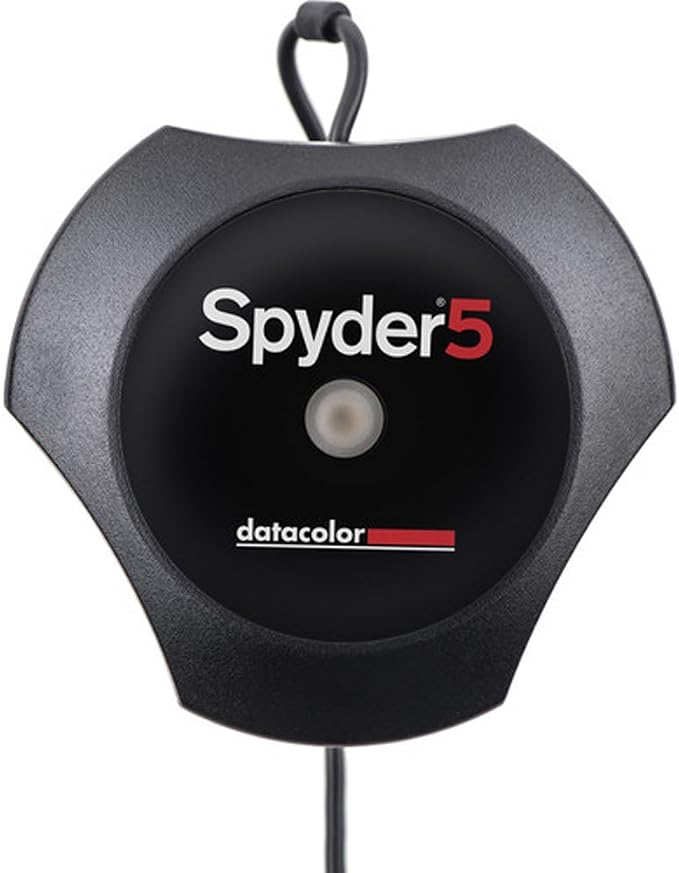
The Datacolor Spyder5PRO is worth considering primarily for designers who already own compatible equipment or are evaluating a secondhand calibration device. It is a dedicated monitor calibrator, making it relevant to photographers, illustrators, and small studios seeking a hardware-based way to create display profiles.
The important consideration is its age. Datacolor states that Spyder5 software updates stopped after September 2023, with installers moved into an archive. That does not mean every unit is unusable, but software availability needs more attention than it does with a current-generation product.
There is some encouraging compatibility information. Datacolor’s Windows 11 support note lists Spyder5PRO software version 5.5 as compatible, while its macOS Tahoe guidance confirms that version 6.3 works on macOS 26. These published compatibility details are useful, although they do not indicate continuing software development.
Its main appeal is the opportunity to calibrate a display without necessarily investing in a newer device. However, a used unit is only a sensible purchase when its condition, software activation, and compatibility can be verified. We would check these details before depending on it for client work or color-critical production.
For best results, install the appropriate archived software, follow the manufacturer’s calibration instructions, and position the sensor correctly against the display. Keep your working environment reasonably consistent between calibration sessions, since changing room lighting can alter your visual perception even when the monitor profile remains unchanged.
Notes of caution:
-
Avoid buying a used unit without confirming that its software and activation details are available.
-
Consider the archived software situation if you need long-term support and ongoing feature updates.
-
Check compatibility with your exact operating-system version before relying on it for professional work.
3. Calibrite ColorChecker Passport Video 2
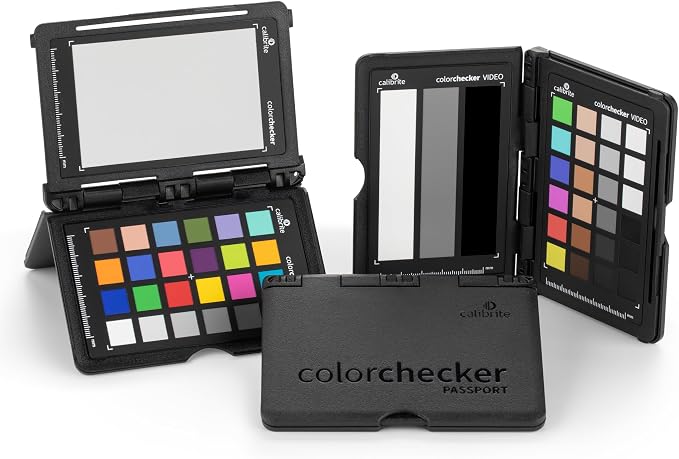
The Calibrite ColorChecker Passport Video 2 is best suited to designers who also produce product photography, brand videos, social media content, or other camera-based creative work. It is not a monitor calibrator. Instead, it provides physical color references that help establish consistency in the images and footage you edit.
Calibrite’s official product details describe four targets containing 52 color patches. These include video color references, a three-step grayscale target, a white-balance target, and a 24-patch ColorChecker Classic target for custom camera profiles.
That combination is especially helpful when footage comes from multiple cameras or is recorded under mixed lighting. The targets provide reference points for exposure, white balance, skin tones, and color balancing, giving you a more consistent starting point before adjusting footage in your editing software.
The Passport Video 2 also supports a portable workflow. Its documented dimensions are 125 × 90 mm for the overall passport, and its protective case holds the targets together. Calibrite identifies compatibility with software such as DaVinci Resolve and Adobe Lightroom workflows, which makes it relevant to hybrid photo and video creators.
The limitation is fundamental: a color target cannot directly measure your monitor or generate a display profile. You must capture the target appropriately and use a compatible editing or profiling workflow to benefit from it. Treat it as a complement to monitor calibration, not a replacement for a screen-measuring colorimeter.
A few things to note:
-
Skip it if your only requirement is measuring and profiling a computer display.
-
It is most useful when photography or video capture is part of your regular design workflow.
4. Calibrite ColorChecker Classic Color Reference Target
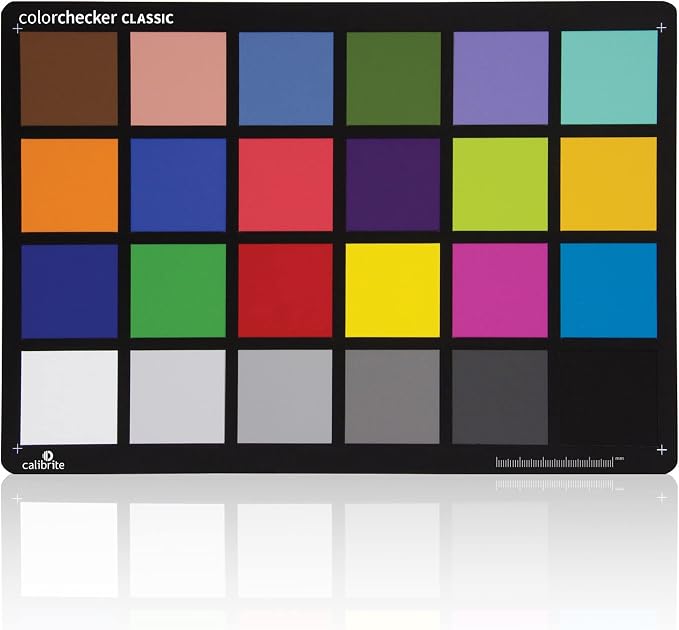
The Calibrite ColorChecker Classic is a useful supporting tool for graphic designers who handle photography, print production, or color-sensitive brand assets. It provides a standardized physical reference for assessing how colors are captured and reproduced, rather than measuring or correcting the monitor itself.
The manufacturer’s official target specifications describe a 24-patch chart with six grayscale patches, RGB and CMYK colors, and representative everyday colors. The patches offer reference points for checking color rendition and can support more consistent photographic editing or color-managed production workflows.
Used with compatible software, the target can help create custom camera profiles and evaluate color differences across images. Calibrite supports camera-profiling workflows using DNG and ICC profiles through its PROFILER software. The chart is also intended for graphic-arts applications, including checking printing and proofing processes.
Its larger physical format is worth considering before buying. The documented target measures 203 × 292 mm, approximately A4 size, making it convenient for studio-based photography and reference work. However, it is less pocket-friendly than the Passport Video 2, so creatives who frequently travel between shoots may prefer a compact format.
The main limitation is that the Classic target does not contain a sensor or directly calibrate a monitor. For best results, photograph it under the same lighting as your subject, then use an appropriate color-management workflow to interpret the captured reference. Screen profiling still requires a compatible display-calibration device and software.
A few things to note:
-
Skip it if you need a standalone monitor calibrator rather than a capture-side reference chart.
-
Consider a smaller target if portability is more important than a larger studio reference.
-
Check that your intended camera-profiling or print workflow supports the software and profiles you plan to use.
5. Calibrite Photo Kit with Display Pro HL Monitor Calibration Colorimeter
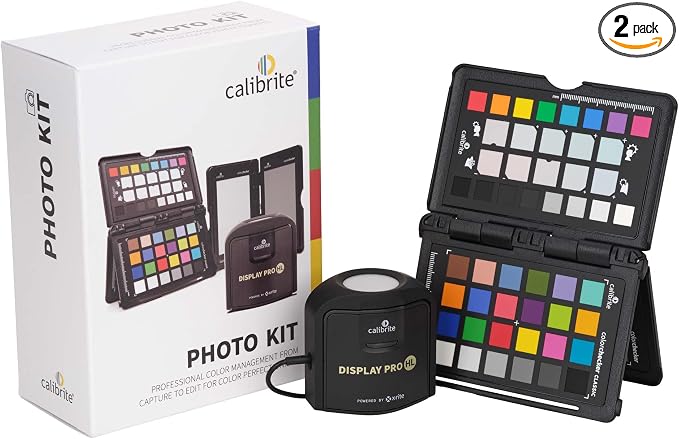
The Calibrite Photo Kit is a strong choice for photographers, digital designers, and creative studios that want both display calibration and capture-side color references in one package. Unlike a chart-only product, it includes the Display Pro HL colorimeter, which measures the monitor and creates a display profile through compatible software.
Calibrite’s official kit specifications confirm that the package combines the Display Pro HL with the ColorChecker Passport Photo 2. The kit is designed to support color management from image capture through editing, helping you address both the accuracy of the display and the consistency of the source photographs.
The Display Pro HL can measure brightness levels up to 3,000 nits and supports LCD, mini-LED, OLED, and Apple XDR panels. Its manufacturer documentation also describes configurable white-point, luminance, contrast-ratio, and gamma settings through Calibrite PROFILER software.
The included Passport Photo 2 adds a 24-patch ColorChecker target, along with enhancement, gray-balance, and white-balance references. This makes the package particularly suitable for photographers and designers who need to correct captured colors before editing them on a calibrated display. Calibrite specifies Mac and Windows compatibility for the profiling software.
The main drawback is that the complete kit may be more than a screen-only designer needs. If your photographs already come from a managed workflow, the additional camera-reference target may see little use. For setup, install the supported software, connect the colorimeter using its USB-C connection or supplied USB-A adapter, and follow the guided display-profiling process.
A few cautions:
-
Skip the full kit if you only need to profile your monitor and do not need camera-reference tools.
-
Check your display’s capabilities and the software’s compatibility before relying on advanced calibration settings.
Final Thoughts
Choosing a color-management tool starts with identifying where inconsistency enters your workflow. For display accuracy, prioritize a supported colorimeter that works with your monitor technology and operating system. Physical targets help with camera matching and print checks, but address another stage of the process.
Consider how often you edit images, whether you hand work to clients or printers, and whether extra capture tools would genuinely be useful. The best setup is the one that makes your color decisions more repeatable without adding complexity you do not need.
Be First to Comment