Transferring photos, video footage, documents, and backups can quickly become a hassle when your computer has too few ports. The right hub makes it easier to connect your storage devices and accessories without constantly unplugging one device to make room for another.
With so many hubs advertising impressive speeds and multiple connections, choosing the right one can feel confusing. A larger port count does not necessarily mean faster transfers, and some adapters offer features you may never use. That is why we compared the specifications, connectivity, and practical benefits of the available options.
After carefully examining the category and researching the products, we selected five options for different content-transfer needs. Our recommendations include versatile USB-C adapters and simpler USB-A hubs, with their differences and limitations explained clearly. This guide will help you narrow down your choices and find a hub that fits your devices and everyday workflow.
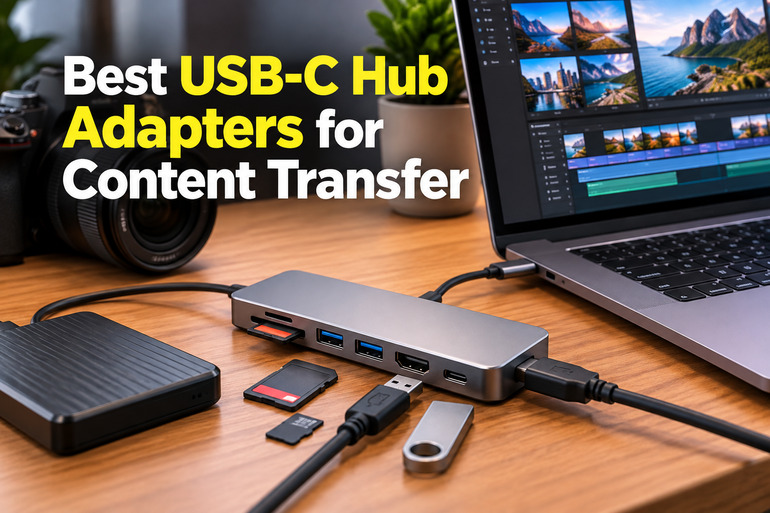
How We Selected the Best USB-C Hubs for Content Transfer
We focused on the tasks that matter most when moving digital content, including transferring photos, editing video, organizing documents, and backing up files. We examined manufacturer information and product listings to understand each model’s data-transfer capabilities, connectivity, charging options, and limitations.
We also considered how easily each hub fits into a typical home office or creative workspace. Since two of our selections are traditional USB-A hubs rather than direct USB-C adapters, we make that distinction clear. We also avoid treating advertised maximum speeds as guaranteed results because your computer, storage device, cable, and connected peripherals all influence performance.
- Data-transfer speed: We looked for clearly stated transfer rates so you can choose a hub that suits your files and storage devices.
- Card-reader support: Built-in SD and microSD slots make importing camera footage and photos easier without carrying another adapter.
- Port selection: A useful combination of USB-A and USB-C data ports helps you connect the devices you already own.
- Display compatibility: HDMI resolution and refresh-rate limits matter when you need an external monitor for editing or everyday work.
- Power delivery: Pass-through charging can reduce cable clutter, but the advertised wattage does not guarantee that your laptop receives the full amount.
- Practical design: Compact dimensions, individual port switches, and convenient cable placement can make daily use simpler.
These considerations help separate genuinely useful features from specifications that may look impressive but offer little practical value. Our recommendations cover different needs, so you can focus on the capabilities that matter most to your workflow.
Best USB-C Hub Adapters for Content Transfer
The right choice depends on how you transfer files and which devices you connect most often. Start with the USB-C adapters if you need a combination of storage connections, card readers, and display support. The SABRENT options are worth considering for simpler USB-A setups.
1. BENFEI USB-C Hub 7-in-1
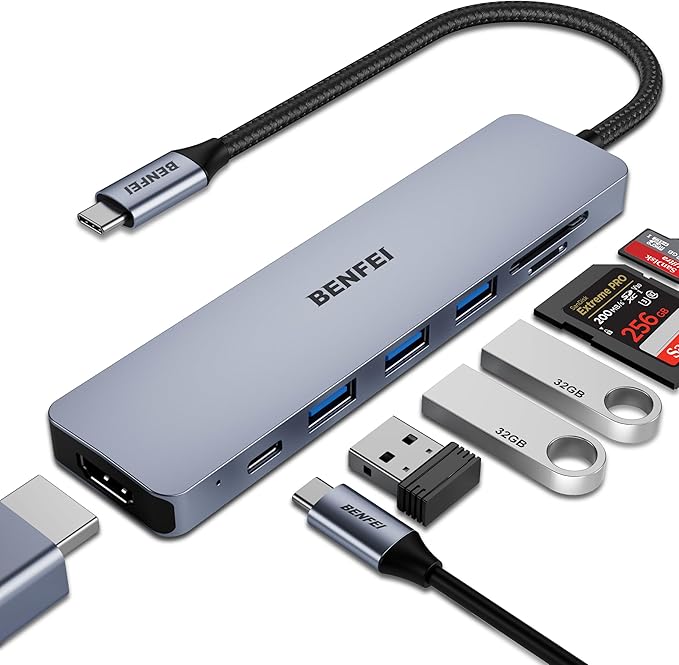
The BENFEI 7-in-1 is a useful option for content creators, photographers, and small-business owners who regularly move files from camera cards to a USB-C laptop. It brings together card readers, USB-A data ports, HDMI, and charging pass-through in one adapter, helping keep your workspace organized.
According to the product listing, the hub has three USB 3.0 ports rated up to 5Gbps and SD and TF card readers rated up to 160MB/s. It also supports HDMI output up to 4K at 60Hz and advertises up to 100W USB-C Power Delivery.
That combination makes everyday media transfers more convenient. You can connect compatible camera cards, transfer files to an external drive, and keep a monitor attached without juggling several separate adapters. The three USB-A ports are particularly helpful if much of your existing equipment uses that connector.
The charging specification deserves a closer look, though. The 100W rating describes the advertised Power Delivery capability, not a guarantee that your laptop receives the full amount. Likewise, HDMI output depends on your computer supporting video over USB-C, so check your device’s documentation before relying on the display connection.
The manufacturer’s product information provides additional details about the advertised features. Actual card-reading and transfer speeds will depend on the card, host connection, and storage device. For reliable use, connect a compatible charger when needed and safely eject external storage before unplugging it.
A few cautions:
- Skip it if your computer’s USB-C port does not support video output and you need HDMI.
- Look elsewhere if your workflow requires Ethernet or data transfer faster than 5Gbps.
- Check card-format and device compatibility before purchasing.
2. UGREEN Revodok USB-C Hub 7-in-1
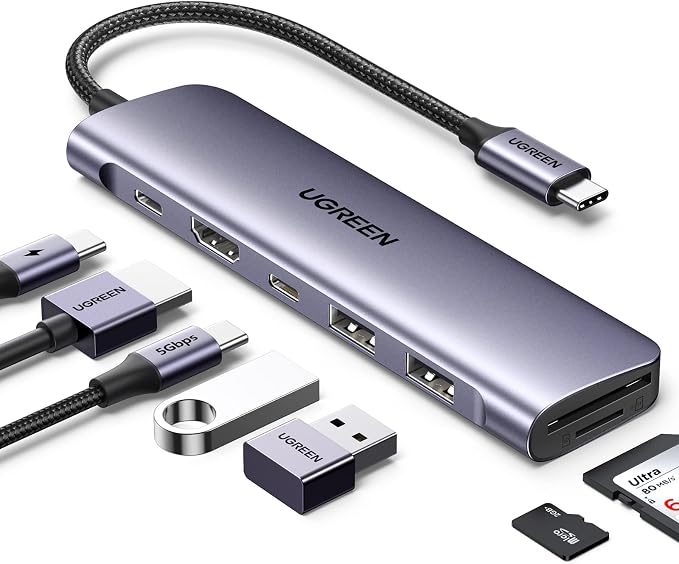
The UGREEN Revodok 7-in-1 is well suited to students, mobile creators, and small-office users who want to connect storage devices, camera cards, a monitor, and a charger through one USB-C adapter. It provides several everyday connections without requiring a larger desktop docking station.
UGREEN’s official specifications list one USB-C data port and two USB-A 3.0 data ports, each rated up to 5Gbps. The hub also includes SD and TF card readers, HDMI output up to 4K at 30Hz, and a USB-C Power Delivery input advertised at up to 100W.
For content transfer, those three data ports give you room to connect compatible USB-C and USB-A storage devices or other accessories. The card readers are particularly convenient when importing photos from a camera, while the HDMI connection lets you use a compatible external display without carrying another video adapter.
UGREEN also describes the hub as having an aluminum housing and a compact design, making it suitable for a mobile setup. However, the HDMI limit is worth considering before you buy. Its advertised 4K output is capped at 30Hz, which may be fine for ordinary desktop work but is less suitable for users who specifically need 4K at 60Hz.
The charging rating also needs context. Up to 100W refers to the hub’s advertised pass-through input, not a guarantee that the same power reaches your laptop. Use a compatible charger and check that your computer supports video output through USB-C. Actual transfer speeds also depend on your connected devices and the shared host connection.
A few things to note:
- Skip it if 4K at 60Hz is essential to your display setup.
- Choose another option if you need built-in Ethernet or data ports faster than 5Gbps.
- Verify USB-C video compatibility with your computer before relying on HDMI.
3. UGREEN USB-C Hub 5-in-1
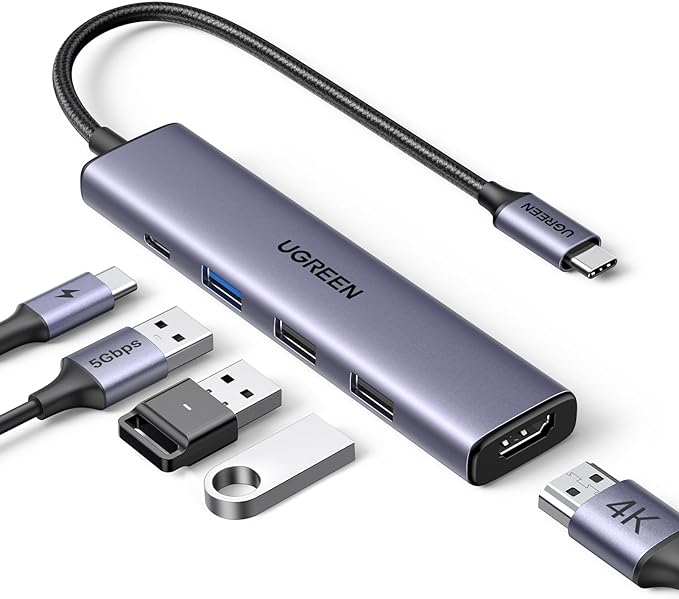
The UGREEN 5-in-1 hub is a practical choice for people who want to expand the connectivity of a compatible laptop or tablet without carrying a large collection of adapters. It is particularly useful if you mainly connect USB-A accessories and need an HDMI connection and charging pass-through as well.
The product listing identifies one USB-A 3.0 data port rated up to 5Gbps, two USB-A 2.0 ports rated up to 480Mbps, HDMI output up to 4K at 30Hz, and a USB-C Power Delivery input advertised at up to 100W.
That mixture makes the hub better suited to one high-speed storage connection alongside lower-bandwidth accessories than to several demanding drives transferring files simultaneously. We would reserve its 5Gbps port for an external drive or other fast storage device, while using the USB 2.0 ports for a keyboard, mouse, or similar equipment.
Its compact layout also makes it easier to carry between workspaces without the bulk of a full docking station. Before using HDMI, however, check your computer’s documentation for USB-C video-output support. Not every USB-C port supports connecting an external monitor.
The charging specification is another detail worth understanding. Although the hub advertises up to 100W Power Delivery, that figure does not mean your laptop will necessarily receive the full amount. You will also need a compatible charger and cable to take advantage of pass-through charging.
One important limitation is the lack of listed SD and microSD card readers. If you regularly import footage straight from camera cards, you will need a separate reader. The USB 2.0 ports are also relatively slow for frequent large-file transfers, so this hub makes the most sense for simpler setups.
A few cautions:
- It is not ideal if you need built-in SD or microSD card readers.
- Consider another hub if you regularly transfer large files through multiple drives.
- Look elsewhere if you require 4K at 60Hz or built-in Ethernet.
4. SABRENT 4-Port USB 3.0 Hub with Individual Power Switches
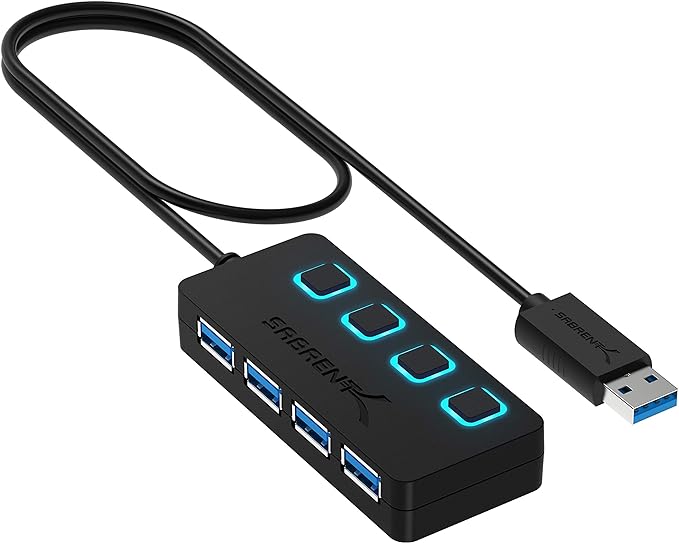
The SABRENT four-port USB 3.0 hub is a straightforward solution for anyone who already has a USB-A port on their computer and wants to connect multiple USB-A devices. It can help organize external drives, flash drives, card readers, and everyday peripherals, although it is not a direct USB-C adapter.
According to the manufacturer specifications, its four downstream ports support transfer rates up to 5Gbps and are backward-compatible with USB 2.0 and USB 1.1 devices. Actual results depend on your computer, connected storage, and cable, with all attached devices sharing the hub’s host connection.
One particularly convenient feature is the individual power switch for each port. LED indicators make it easier to see which ports are active, and you can control connected devices without repeatedly unplugging their cables. This can be useful on a busy desk where several peripherals stay connected throughout the day.
The hub also includes a 5V/2.5A power adapter, which can help supply power to compatible connected devices. The manufacturer’s product details provide more information about the included power arrangement. Before switching off a port connected to external storage, safely eject the drive through your operating system to reduce the risk of interrupted writes or data loss.
Its small housing, measuring approximately 3.44 by 1.48 by 0.62 inches, takes up little desk space. However, the integrated cable is only 10 inches long, so it works best when the computer is nearby. It also lacks built-in HDMI, Ethernet, card slots, and USB-C data connections.
A few cautions:
- Skip it if your computer has only USB-C ports and you do not have a compatible USB-A connection.
- Choose a faster hub if your workflow needs more than 5Gbps.
- Look elsewhere if you need card readers, HDMI, or Ethernet built into the same device.
5. SABRENT 4-Port USB 2.0 Data Hub with LED Power Switches
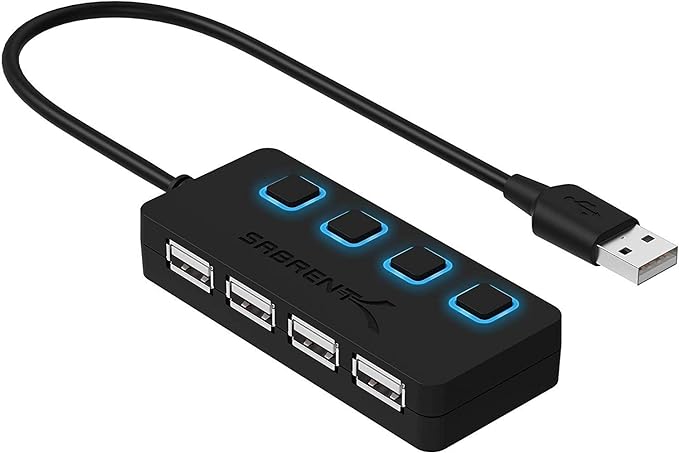
The SABRENT four-port USB 2.0 hub is best suited to basic connectivity, occasional small-file transfers, and everyday accessories on computers with a standard USB-A port. It can expand the number of available connections, but it is not the strongest choice for demanding photo or video workflows.
The official specifications list four USB 2.0 ports rated up to 480Mbps, with backward compatibility for USB 1.1 devices. This is considerably slower than the 5Gbps interfaces available on USB 3.0 hubs, making the speed difference particularly important when you regularly copy large videos or backups.
Its individual power switches and blue LED indicators provide a convenient way to control connected devices without constantly pulling out cables. However, these switches do not increase transfer speeds or turn the hub into a dedicated charging station. Its main advantage is simple access to several USB-A connections.
The compact housing measures approximately 3.4 by 1.4 by 0.6 inches and weighs around 1.7 ounces, according to the manufacturer. An integrated 10-inch cable keeps the setup simple, although its short reach means the hub works best when positioned close to the computer.
For a keyboard, mouse, or occasional transfer of smaller documents, that simplicity may be all you need. The limitations become more noticeable when you transfer multi-gigabyte backups, RAW photos, or video footage. Multiple active devices also share the connection, so this is better treated as a basic USB expansion hub than a content-creation workhorse.
A few things to consider:
- It is not suitable for USB-C-only computers unless you add a compatible USB-A adapter.
- Skip it if you regularly move large video files, RAW photos, or multi-gigabyte backups.
- Consider a USB 3.0 or faster hub if content transfer is a priority.
Final Thoughts
When choosing a content-transfer hub, start with your devices and the files you move most often. Photographers may benefit most from integrated card readers, while people who work with external drives should pay closer attention to data speeds and the number of high-speed ports. Display requirements and charging compatibility deserve equal consideration.
Your workspace and existing equipment should guide the final decision. A compact adapter with the right connections can make everyday work easier, while an unnecessarily complicated hub may add features you rarely use. Choose the option that supports your workflow reliably and makes moving your content simpler.
Be First to Comment