Live broadcasting requires us to manage scenes, microphones, audio levels, recordings, and other production tasks while staying focused on the audience. Constantly switching between windows with a mouse and keyboard can interrupt the flow and make important controls harder to reach.
Choosing the right controller is not always straightforward. The market includes compact LCD keypads, multifunction control surfaces, programmable macro pads, and foot pedals, each with different software requirements and capabilities. A controller with more buttons is not necessarily the best choice for every streaming setup.
We researched the category, examined current product listings and manufacturer documentation, and compared five controllers for different broadcasting needs. Our recommendations explain what each device offers, where it fits best, and which limitations deserve attention before you buy.
How We Selected the Best Stream Deck Controllers for Live Broadcasting
We looked for controllers that simplify repeated broadcast tasks without making essential actions hard to find. We prioritized manufacturer documentation for hardware, operating-system support, software features, and setup, treating retailer descriptions as less conclusive when official information was limited.
We compared each control style against common workflows: LCD keys for labeled actions, dials for supported adjustments, and pedals for hands-free triggers. Software compatibility and documentation mattered because a controller is only useful when its actions work with your streaming app.
-
Live-broadcast fit: Can the controls help with routine scene, audio, recording, or macro tasks?
-
Control layout: Are keys, dials, and pedals suited to the actions you repeat most often?
-
Software ecosystem: Are supported apps, plugins, and configurable actions clearly documented?
-
Computer compatibility: Do the published operating-system and connection requirements match your setup?
-
Desk ergonomics: Will the device fit where you can reach it without distracting from the stream?
-
Documentation and support: Can you verify setup steps, updates, and important limitations before buying?
These picks serve different kinds of broadcasters rather than duplicating one another. Start with the type of control you need most, then compare the details below.
Best Stream Deck Controllers for Live Broadcasting
Our recommendations range from a straightforward desktop controller to a feature-rich production surface and a hands-free accessory. Each offers a different approach to controlling a live broadcast.
1. Elgato Stream Deck Neo
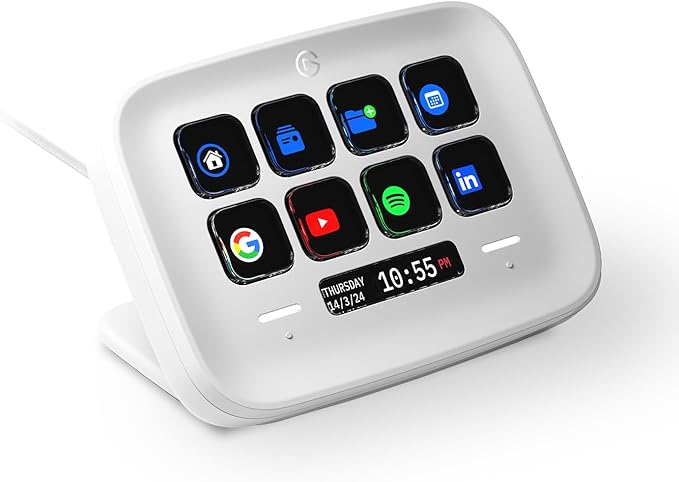
The Elgato Stream Deck Neo suits solo streamers and small channels that need scene changes and frequent commands without crowding a desk. Its eight customizable LCD keys can cover essentials such as microphone mute, scene switching, and starting a recording during a live session.
Two touch points and a customizable Infobar let you move between layouts, while the Stream Deck app supports profiles, pages, folders, and Multi Actions. In practical terms, one key can trigger a sequence instead of making you click each step separately during busy transitions.
For OBS users, Elgato’s free OBS plugin can switch scenes, manage sources, and control recording and audio. The official requirements specify Windows 11 or later or macOS 13 or later, plus a USB-C connection, so check your computer and available USB-C port before ordering.
The published dimensions put the Neo at roughly 4.2 by 3.1 inches, and it weighs about 210 grams. Its integrated stand gives it a stable desktop position, but the fixed 90-centimeter cable may be limiting when your computer sits farther away or below the desk.
It stands out for its mature Stream Deck software ecosystem and visual buttons rather than a high raw key count. We recommend mapping the most-used broadcast actions first, then using separate profiles for editing, meetings, or less-common tools to keep the live page uncluttered.
Who should skip it:
-
Broadcasters who need numerous simultaneous controls may outgrow eight keys quickly.
-
Skip it if your computer runs an unsupported operating system or lacks a suitable USB-C connection.
2. Razer Stream Controller
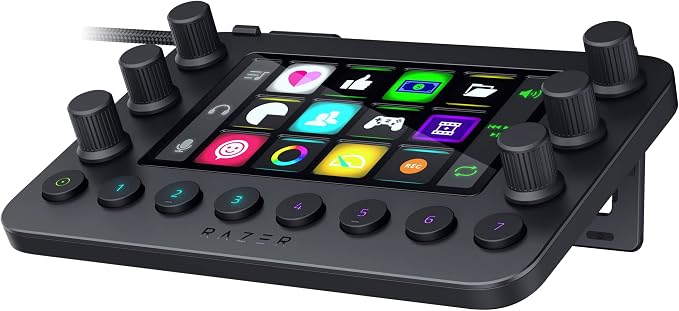
The Razer Stream Controller suits broadcasters who want a deeper control surface for streaming, editing, and audio adjustment. Its official specifications list 12 haptic LCD keys, six dials, and eight programmable buttons, giving frequent commands more than one input style.
The keys can display customizable icons and trigger shortcuts or macros, while the dials and side LCD panels help label and adjust supported functions. That makes the unit more suitable for users who manage several apps than for someone needing only a few scene buttons.
Its companion environment is Loupedeck rather than Elgato’s Stream Deck app, so plugin availability and setup should be checked before committing. The current support note says Razer devices remain supported, with Loupedeck 6.4.1 or later recommended if the controller is not detected.
The manufacturer’s technical specifications describe a detachable stand and a USB-A to USB-C cable, keeping the controller desk-friendly without requiring a special display connection. Its combination of keys, knobs, and programmable buttons is the clearest reason to choose it for a more involved production workflow.
For a live setup, reserve keys for scene changes and streaming and recording controls, then use dials for functions exposed by installed plugins. Test profiles before going live, particularly for audio levels or recording states, and keep the software updated to avoid device-detection issues.
Who should skip it:
-
Skip it if you prefer a controller that works within Elgato’s software ecosystem.
-
It may be unsuitable if you do not want to maintain a separate control application and its plugins.
-
Avoid assuming every dial supports every application or audio function without a compatible integration.
3. VSD M18 Macro Pad Programmable Keypad
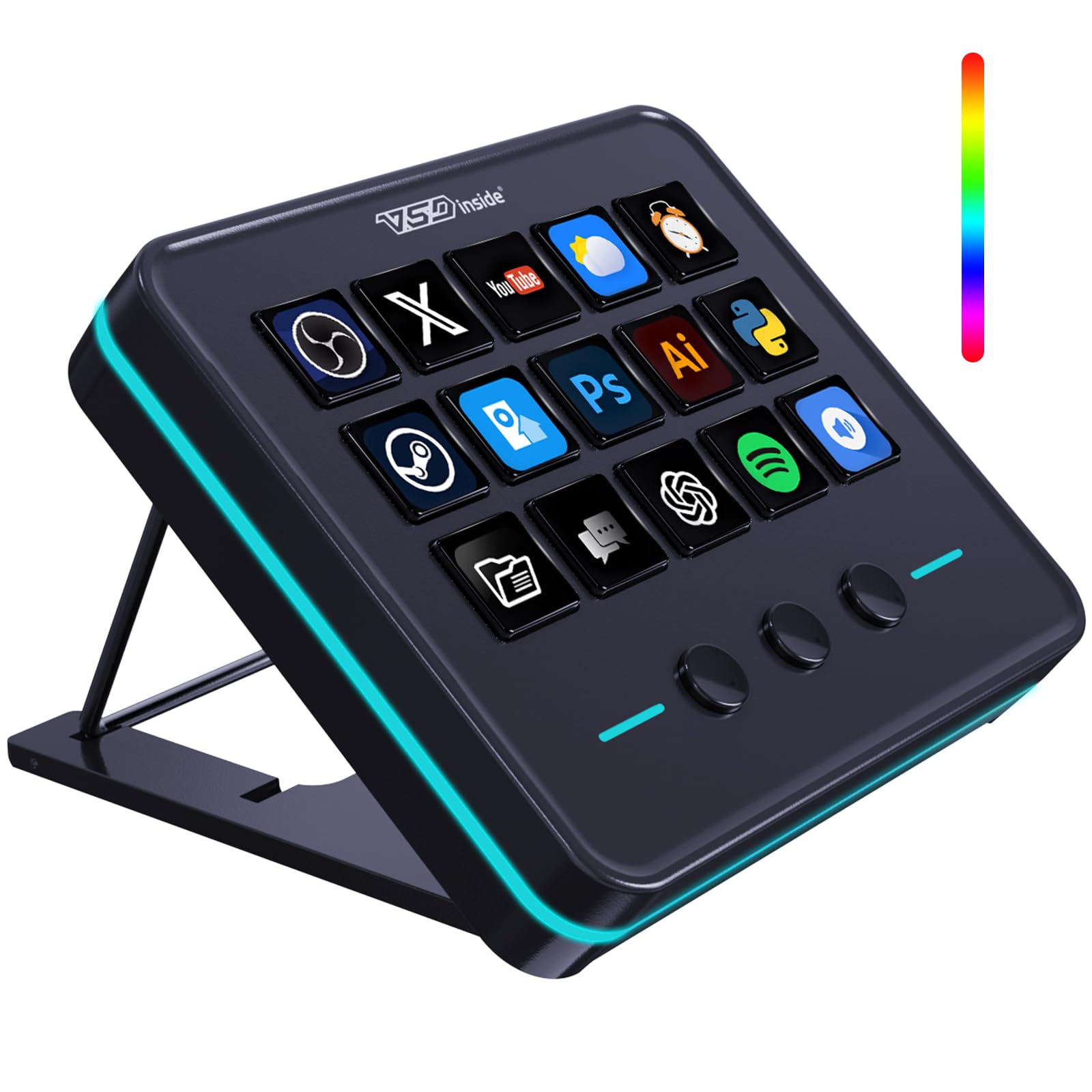
The VSD M18 is best for streamers who want a larger bank of shortcuts without jumping to a premium control surface. Its current product listing describes 18 programmable keys, made up of 15 LCD keys and three physical buttons, for scenes, macros, and app launches.
That layout helps creators give each action a recognizable icon while reserving non-display buttons for common commands. The product listing says keys can run commands for streaming, video editing, and general productivity, though actual controls depend on the supplied software and app integration.
The listed unit uses USB-C and is described as working with Windows and macOS. Its compact 4.6-by-4.1-inch footprint makes it plausible for a desk shared with a keyboard, microphone arm, and laptop, but confirm port and operating-system support against your specific machine.
Documentation is thinner than for better-established ecosystems: the Amazon listing supplies most verifiable details, and the available manual says Linux support is not guaranteed. Check software updates and return terms before relying on it for a paid show, and verify response times for technical support.
For best results, map scenes, mute toggles, recording controls, and a few frequently used macros first. Test every icon in a private rehearsal; do not rely on any action in a live workflow until you have confirmed that it triggers reliably before each scheduled broadcast.
Who should skip it:
-
Skip it if you need guaranteed Linux support or a published compatibility matrix.
-
Avoid relying on it for paid broadcasts until its software is confirmed on your setup.
4. STREONOR S6 Mini Stream Controller
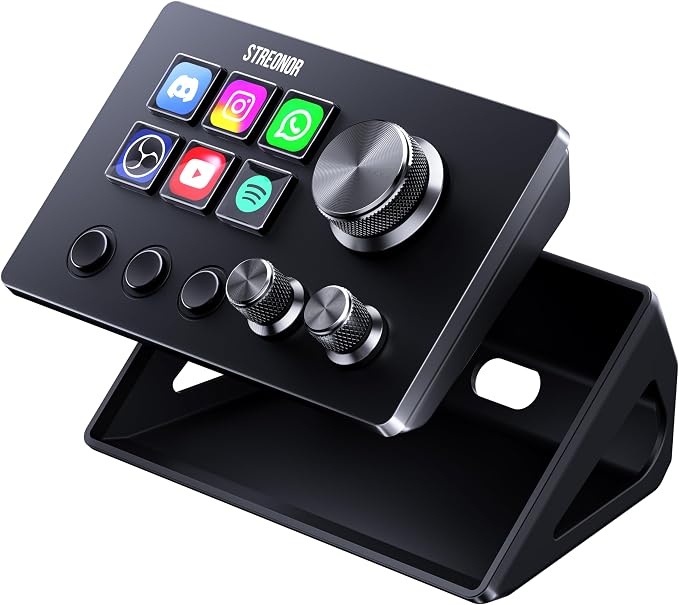
The STREONOR S6 Mini suits new streamers or compact workstations where a full-size deck would feel oversized. Its current listing identifies six customizable LCD keys, three rotary knobs, and three dedicated scene-switching keys, creating a mix of visual shortcuts and physical controls in a small unit.
The keys are described as handling hotkeys, app launches, soundboard commands, and multi-action macros; the knobs can be assigned to supported functions such as volume or scrolling. That combination is appealing if you want more adjustment options than a simple six-key pad provides.
According to the current listing, it connects over USB-C and supports Windows 10 64-bit or later and macOS Big Sur 11 or later; Linux is listed as unsupported. The seller also recommends a direct USB 3.0 connection instead of a hub.
We could verify the feature description from the retail page, but did not find a clear dedicated manufacturer support portal or detailed official plugin directory. The listing advertises broad plugin availability, yet buyers should confirm that their exact broadcasting software and required actions are supported.
A safe setup is to assign the six LCD keys to your most visible scene and audio commands, then program the knobs only after testing their behavior. Run a full practice stream before using complex macros, particularly if they alter recording or microphone state.
Who should skip it:
-
Skip it if you need extensive independent documentation and a clearly established software ecosystem.
-
Avoid buying it before confirming that the supplied software works with your operating system and broadcasting applications.
-
It may be a poor fit if you need more display keys for a complex production.
5. Elgato Stream Deck Pedal
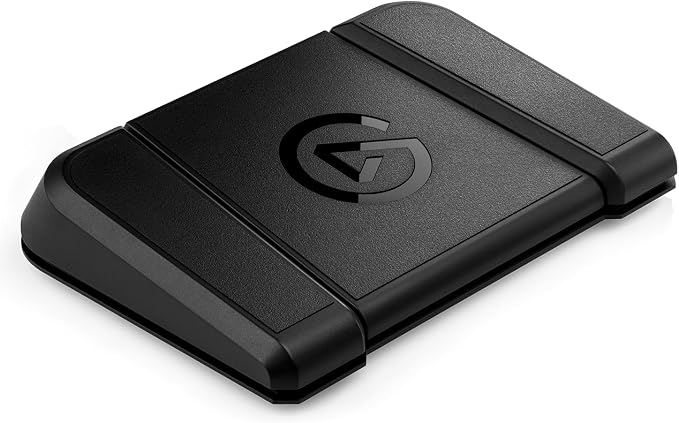
The Elgato Stream Deck Pedal is best for a streamer who already uses a keyboard or another control deck and wants a few hands-free actions. Three footswitches can trigger controls while your hands remain on a camera, instrument, drawing tablet, or game.
Elgato’s Stream Deck software lets you assign single actions or Multi Actions, so one pedal can trigger a sequence instead of one shortcut. Smart Profiles can change the pedal’s layout for different applications, and interchangeable springs let you adjust how much pressure each switch requires.
Elgato’s official specifications list a heavy-duty chassis, anti-skid feet, a grippy surface, and interchangeable spring options. At 9.6 by 6.9 inches and 960 grams, it takes more space than a desktop macro pad but is designed to stay planted on the floor.
With Windows 11 or later and macOS 13 or later supported, setup is handled through the Stream Deck app over USB-C. Begin with easy-to-recognize controls such as mic mute or camera switching, then practice each pedal until you can press it without looking.
The main trade-off is that pedals provide no LCD labels, so each position must be learned by feel. This makes the device more suitable for three repeatable actions than for a long list of scenes, layered menus, or controls that change from show to show.
Who should skip it:
-
Skip it as your only controller if you need many labeled scenes and source controls.
-
Avoid it if your desk arrangement leaves no comfortable, stable floor space.
-
It is less useful when your hands are already free and a keypad would be easier to see.
Final Thoughts
Choosing a broadcast controller is less about maximizing the number of buttons and more about making critical actions easy to recognize and trigger. Prioritize software compatibility, the controls you actually need, and the reliability of the setup guidance before committing.
Consider your desk, preference for visual keys or dials, and whether hands-free controls would help. A brief rehearsal can reveal limitations before they affect a stream. Choose a controller that simplifies your show rather than complicating it.
Be First to Comment