Split keyboards can make long typing sessions feel much more manageable, especially when you spend most of your day working at a desk. The challenge is figuring out which design actually suits your workflow, since keyboards differ widely in layout, key feel, connectivity, adjustability, and overall footprint.
It gets even more confusing because “ergonomic” and “mechanical” are not interchangeable terms. Some ergonomic keyboards use membrane or plunger mechanisms rather than mechanical switches, while others combine true mechanical switches with adjustable split layouts. Knowing that difference can make it much easier to narrow down your choices.
We examined the category, checked the current models, compared their most useful features, and selected five options for different types of users. Our goal is to make the decision simpler by showing where each keyboard fits, what makes it useful, and which limitations are worth knowing before you buy.
How We Selected the Best Split Keyboards
We started by looking at how each keyboard approaches ergonomics. Some use a pronounced split, others use a curved or wave-shaped design, and some let you adjust the two halves to suit your preferred position. We then considered how those differences translate into everyday office and home-office use.
From there, we looked at the features that matter most when you are typing regularly. We paid close attention to the key mechanism, connectivity, layout, adjustability, compatibility, and overall practicality. Since these keyboards are not all mechanical, we have kept that distinction clear rather than treating them as though they offer the same typing experience.
- Ergonomic layout: A well-designed split or curved arrangement can give your hands more room to settle naturally during long typing sessions.
- Key feel: Mechanical, membrane, and plunger mechanisms feel different, so knowing what each keyboard uses helps you choose more confidently.
- Adjustability: More control over spacing, angle, or tenting can make it easier to fine-tune the keyboard to your desk setup.
- Connectivity: Wired and wireless options suit different workspaces, especially if you want a simpler setup or fewer cables.
- Useful features: Things like remapping, macros, multimedia controls, RGB, and multi-device support can be genuinely helpful for certain workflows.
- Compatibility: We consider supported operating systems and connection methods so you can avoid unpleasant surprises after purchase.
- Practical limitations: We also look at space requirements, learning curves, and missing features that could affect your day-to-day experience.
Together, these factors give us a useful mix of ergonomic options. Rather than forcing every keyboard into the same mold, the recommendations below reflect different priorities and working styles.
Best Split Mechanical Keyboards for Office and Home Use
The five keyboards below cover a wide range, from simple wired ergonomic designs to compact and highly configurable mechanical models. We have kept their differences clear so you can focus on the features that actually matter to your setup.
1. Perixx PERIBOARD-512B Wired Ergonomic Keyboard
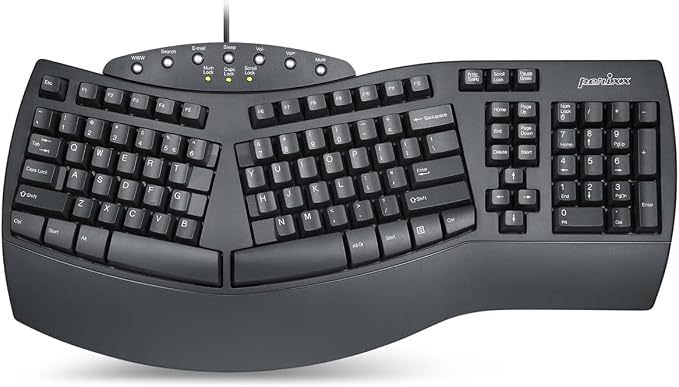
The Perixx PERIBOARD-512B is a practical choice for office workers and home-office users who want a straightforward ergonomic keyboard with a familiar full-size layout. Its split-key, three-dimensional design is intended to create a more natural hand and arm position, as described in the official specifications.
This is a membrane keyboard rather than a mechanical model, so it will feel quite different from a board built with individual mechanical switches. Perixx lists a 104-key US layout, an integrated palm rest, USB-A connectivity, a 1.8-meter cable, and seven multimedia hotkeys in its product manual. Those features keep it focused on everyday office productivity.
What makes it appealing is how uncomplicated the setup is. Plug it in and start working, without worrying about batteries, wireless pairing, or a separate wrist rest. The full-size layout also gives you a dedicated number pad, which can be especially convenient for spreadsheets, accounting, and data entry. Perixx lists ABS construction and a 1,154-gram weight.
The main adjustment is getting used to the split arrangement. The keyboard feels noticeably different from a conventional flat board, and Perixx notes that users may need some time to adapt. Giving yourself a gradual transition is more sensible than expecting your typing speed to feel completely natural immediately.
For the best experience, connect the USB cable directly, make use of the integrated palm rest, and allow yourself a little time to settle into the separated key zones. Its wired design also makes it an easy fit for a permanent workstation.
A few cautions:
- Skip it if mechanical switches are an essential part of what you want from your keyboard.
- Its full-size footprint may feel too wide for smaller desks.
- It does not offer wireless connectivity.
2. Logitech Ergo K860 Wireless Ergonomic Split
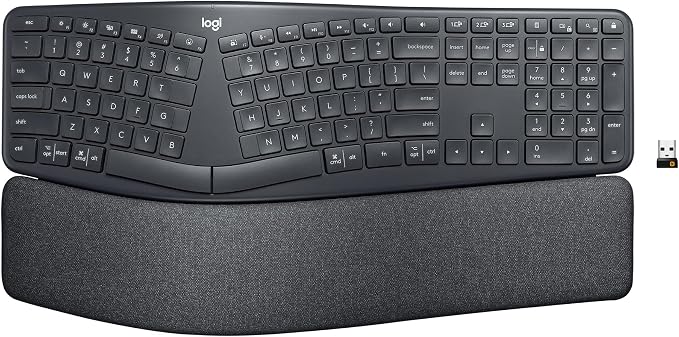
The Logitech Ergo K860 is a good fit for professionals who want a familiar full-size office layout with a pronounced ergonomic split and wireless freedom. Its sculpted design separates the left and right key areas while using a large integrated wrist rest to create a more elevated typing position, according to the official product details.
The K860 is not a mechanical keyboard either. Logitech describes its mechanism as membrane-based and uses Perfect Stroke keys designed to provide a stable, comfortable, and relatively quiet typing experience. That makes it more naturally suited to office environments than to people seeking a pronounced mechanical switch feel, as outlined in Logitech’s keyboard documentation.
Wireless connectivity is one of its biggest practical advantages. The current business specification supports Logi Bolt and Bluetooth Low Energy, with up to 10 meters of wireless range. Logitech also supports customization through Logi Options+ on Windows and macOS, giving you additional control over supported functions through its business product page.
The K860 is also a substantial keyboard. Logitech lists dimensions of 456 by 233 by 48 millimeters and a weight of 1,160 grams, so it is better suited to a dedicated desk than frequent travel. Its two AAA batteries are rated for up to 24 months, helping keep maintenance fairly simple.
For the best results, position the keyboard centrally and adjust its tilt until the angle feels natural. Once paired, the wireless setup can keep your workstation cleaner while still giving you the familiar functionality of a full-size office keyboard.
Notes of caution:
- Skip it if you specifically want mechanical switch feedback.
- Its large footprint requires a reasonably spacious desk.
- The sculpted ergonomic shape may take some getting used to.
3. Logitech Wave Keys Ergonomic Wireless Keyboard
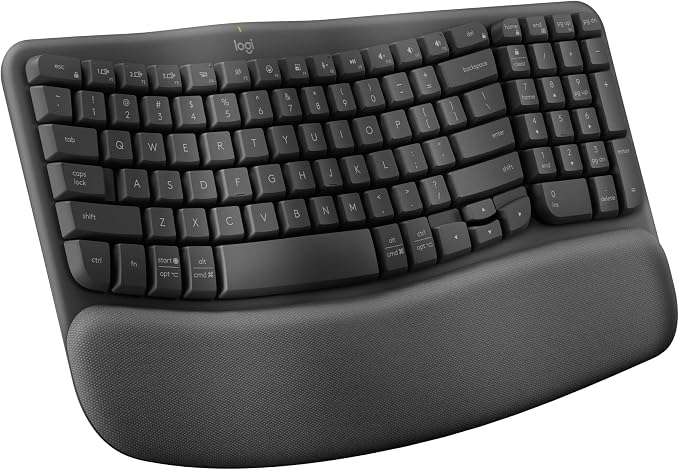
The Logitech Wave Keys is a useful option for home-office users and general business work who want ergonomic shaping without moving to a fully separated keyboard. Rather than splitting the keyboard into two distinct halves, Logitech uses a wave-shaped design intended to encourage a more natural position for your hands and forearms, as shown in the official Wave Keys details.
Like the K860, this is not a mechanical keyboard. Logitech identifies the Wave Keys as using a plunger mechanism, so its typing feel is closer to a conventional office keyboard than to a mechanical enthusiast board. That makes it a natural fit for users who want familiar key behavior alongside ergonomic shaping, as confirmed by its technical specifications.
Its biggest strength is the balance between ergonomic design and everyday convenience. Logitech includes an integrated cushioned palm rest, while Easy-Switch lets you connect up to three compatible devices. The keyboard supports both Logi Bolt and Bluetooth Low Energy, details that Logitech provides on its product page.
Battery life is another appealing feature for a busy workstation. Logitech rates the standard model for up to 36 months from two AAA batteries, although actual results depend on usage. Its compact shape also keeps the keyboard from taking up as much horizontal space as larger split ergonomic designs.
For the best experience, use the cushioned palm rest consistently and take advantage of Easy-Switch when working across multiple devices. The built-in tilt adjustment is also worth experimenting with, since a small change in angle can make the keyboard feel more natural on your desk.
A few things to note:
- Skip it if a true separated split layout is essential.
- It does not use mechanical switches.
- The wave-shaped design may feel unfamiliar at first.
4. Cloud Nine ErgoPRO Full-Size Mechanical Split Ergonomic
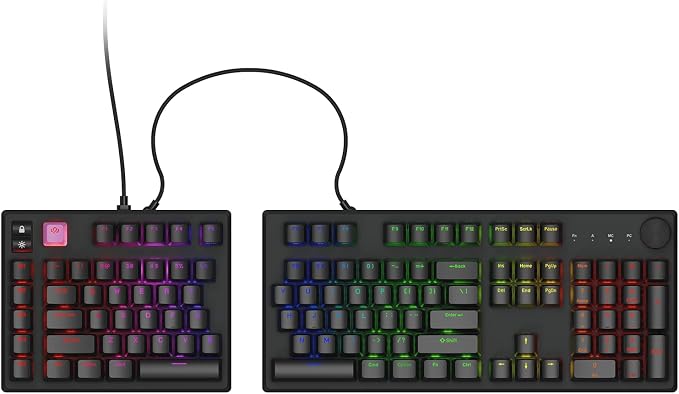
The Cloud Nine C979 ErgoPRO is aimed at users who want genuine mechanical switches alongside a highly adjustable split ergonomic layout. It is particularly well suited to developers, writers, designers, and other heavy typists who want more control over how the keyboard sits on the desk, as outlined in the current product listing.
Adjustability is the main attraction. Cloud Nine says the ErgoPRO lets you change the split, angle, and tilt, so the two halves can be positioned independently rather than locking you into a single ergonomic shape. The current listing uses Kailh Box switches and offers Box Brown and Box Red configurations.
The ErgoPRO also brings several features that will appeal to mechanical-keyboard enthusiasts. Cloud Nine highlights hot-swappable switches, PBT keycaps, and aluminum construction across its current product range. That gives you more flexibility to personalize the keyboard instead of being committed to one fixed configuration.
Setup takes a little more attention than a conventional office keyboard because the two halves connect separately. Cloud Nine’s support documentation specifies connecting the linking cable between the halves before attaching the longer USB cable to the computer. The current ErgoPRO also supports VIA and QMK firmware on Windows and macOS, according to its product support page.
For the best results, start with a moderate split, angle, and tenting position before making smaller adjustments. A highly adjustable keyboard gives you plenty of freedom, but that does not mean the most extreme setting will automatically be the most comfortable.
A few cautions:
- Skip it if you want a simple plug-and-play office keyboard with minimal setup.
- Its adjustable design may require some experimenting before you find your preferred position.
- The full split configuration takes more desk space than a conventional keyboard.
5. BAROCCOMiSTEL MiSTEL MD600 Alpha BT RGB
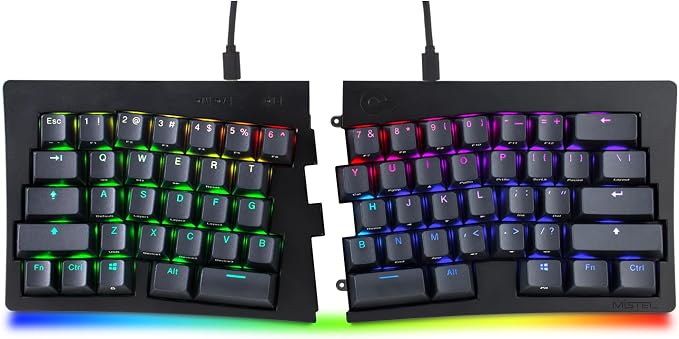
The MiSTEL MD600 Alpha BT RGB is a compelling option for users who want a compact split mechanical keyboard with wireless connectivity and enthusiast-oriented features. Its 64-key layout makes it particularly interesting for programmers, experienced typists, and anyone trying to keep more free space around the keyboard, as detailed in the manufacturer specifications.
The current model uses a 64-key ANSI layout with PBT double-shot keycaps, RGB backlighting, USB-C, Bluetooth 5.0, macros, onboard memory, and N-key rollover. Mistel also lists a 1,000Hz polling rate and compatibility with Windows and macOS in the same official specifications.
The compact split design is what really sets it apart. Rather than maintaining the proportions of a traditional full-size ergonomic keyboard, the MD600 Alpha removes dedicated keys and relies more heavily on layers and programmable functions. That saves desk space, but it also asks you to become more comfortable with a compact layout.
The keyboard includes magnetic feet and a cable for connecting its two halves. Mistel’s documentation also shows support for customizable layers and macro functions, while the available model documentation identifies Gateron and Cherry MX switch configurations.
For the best experience, spend a little time configuring the available layers before making it your main work keyboard. Once the shortcuts you use most often are mapped sensibly, a compact split layout can become a very efficient way to work.
A few things to note:
- Skip it if you rely heavily on a dedicated number pad.
- Its compact layout has a steeper learning curve than conventional keyboards.
- RGB and programmable features may be unnecessary for a basic office workflow.
Final Thoughts
Choosing a split keyboard is really about matching the physical design and key behavior to the way you work. Pay attention to how much adjustment you need, how much desk space you have, which key mechanism you prefer, and whether wired or wireless connectivity makes more sense for your routine.
It is also worth looking beyond the “ergonomic” label. A keyboard can have an impressive design without being the right fit for you. Choose the layout and features that support your typing habits, workspace, and workflow, then give yourself enough time to adapt to the new position.
Be First to Comment